Verify ID with Sumsub
Verify a participant's identity as a task within a plan.




Onthen allows you to create onboarding 'plans' that you can send to customers, partners, prospects, or anyone else (we call them 'participants'). Each plan has a set of tasks that a participant needs to complete.
The Verify ID with Sumsub task allows you to verify a participant as a task within a plan. Sumsub offers a flexible set of 'verification levels', including ID documents, liveness, phone, and address.
This task allows you to connect your Sumsub account and then require participants to pass through a customizable set of verification steps.
When the participant opens the task, Sumsub loads up within the main task canvas and looks like an integral part of your plan. The participant will follow the instructions on screen and go through one or more steps to verify their identity, all without leaving the plan. Once complete, they'll be able to continue on to the next task.
Note: As it's much easier for a participant to complete this task on mobile, if they're on desktop we'll guide them to move to the flow to mobile before they continue. There's a choice of QR code scan or receiving a text message with a link. Once the task is complete, we'll direct them back to desktop to continue.
Note: This task can only be completed by the owner participant, i.e. not by other participants that you or the owner participant invite into the plan. This is so that you can always ensure the owner participant is the person who is verified.
If a secondary participant tries to complete the task, they'll see a message explaining this. They can still comment on the task if needed.
Follow these steps to connect your Sumsub account first. You can also connect during the setup of your task action if you prefer, it's the same process.
First, you'll need to create an app token for Sumsub. Login to Sumsub, and then click on Dev space on the menu. Now click App tokens, and select Generate app token. You'll see a page where you can set up the token:

For now, you'll create a sandbox app token. This will allow you to test everything before using your real/production Sumsub account (see the 'Going live' section later).
Give it a name, such as Onthen Token. You can leave all of the permissions selected, or (recommended) remove any permissions that are not related to creating and managing applicants.
Click the Generate app token button (top right of page) and you'll then see the app token and secret key that you'll need to copy into Onthen in a few moments.
Back in Onthen, click Integrations > Accounts > Connect. You'll see a list of accounts that Onthen integrates with:

Find the Sumsub panel and click Connect. This takes you to a page where you can paste in the credentials:
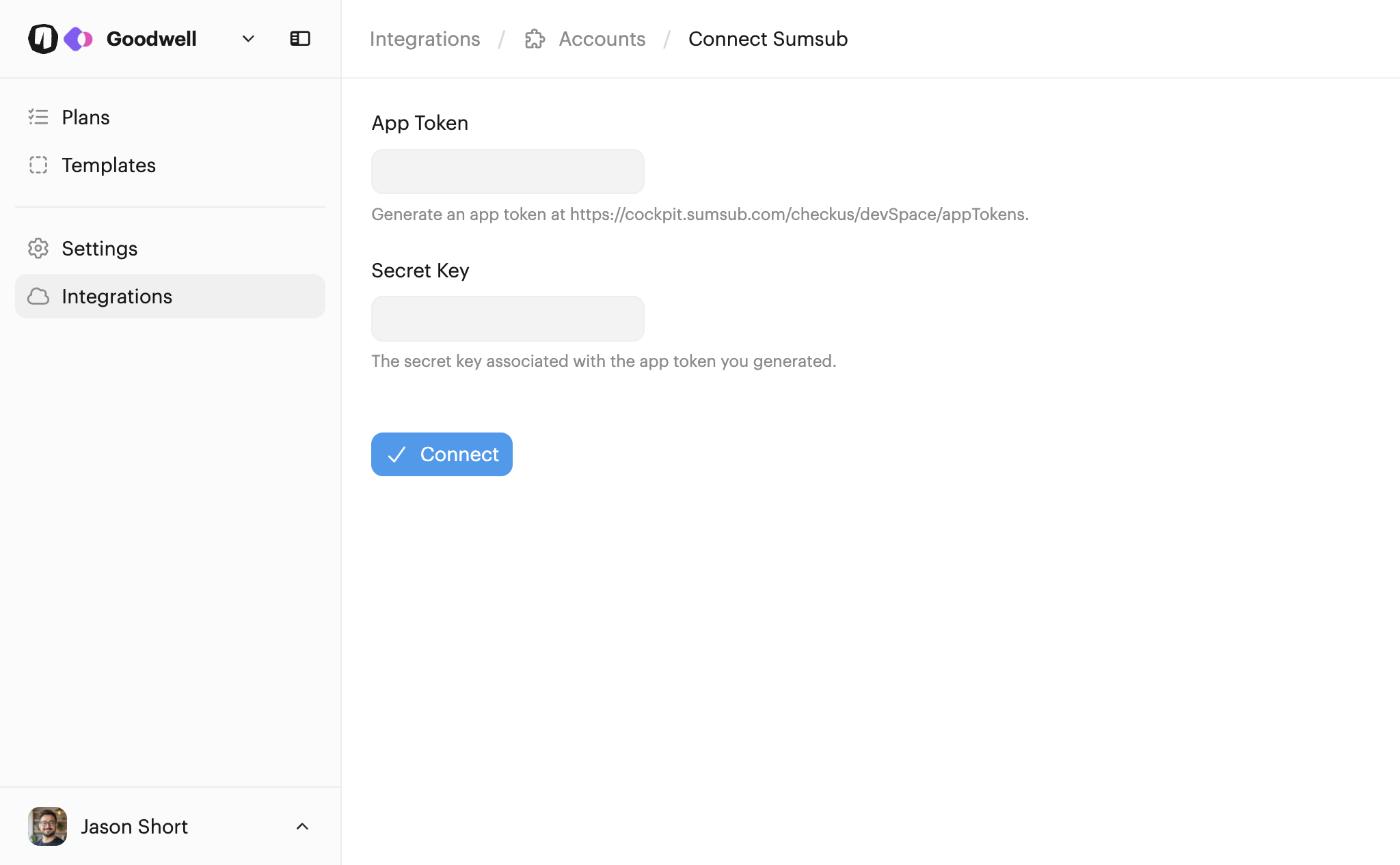
Once you've pasted in the app token and secret key, click Connect. The account is now setup and ready to use.
Sumsub uses a concept of verification levels to determine what steps the participant will go through.
To manage the verification levels available under your account, in the Sumsub dashboard click on Integrations > Verification levels > Individuals.
There are some default levels that you can use immediately, or you can create a custom level if you prefer. In this guide, we'll select the 'id-and-liveness' check. Make a note of the name of the level you want to use.
Note: This task is only suitable for verifying individuals currently. Make sure you choose a 'standard' verification level and not 'applicant actions'.
Head back over to Onthen and open the Onthen template you want to add a verification step into.
In the section you want to add the task, click Add task. Select Sumsub / Verify ID as the task type. Add a description, due date, etc. if you need. Click Add task to create the new task.
When the task is saved, click on its name to configure it. You'll see a page like this:
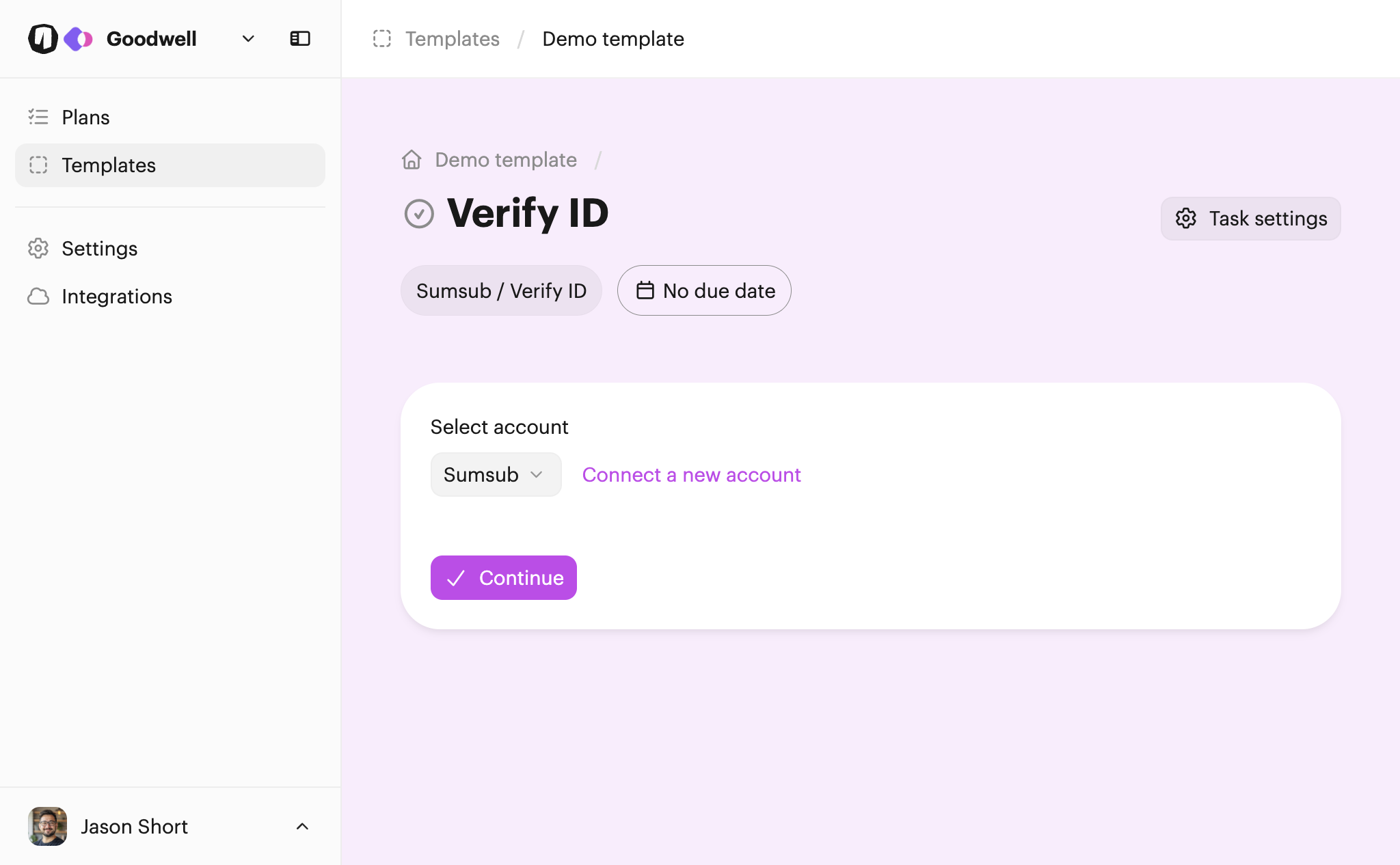
Select the Sumsub account you created earlier and click Continue. Next you'll see the configure page:
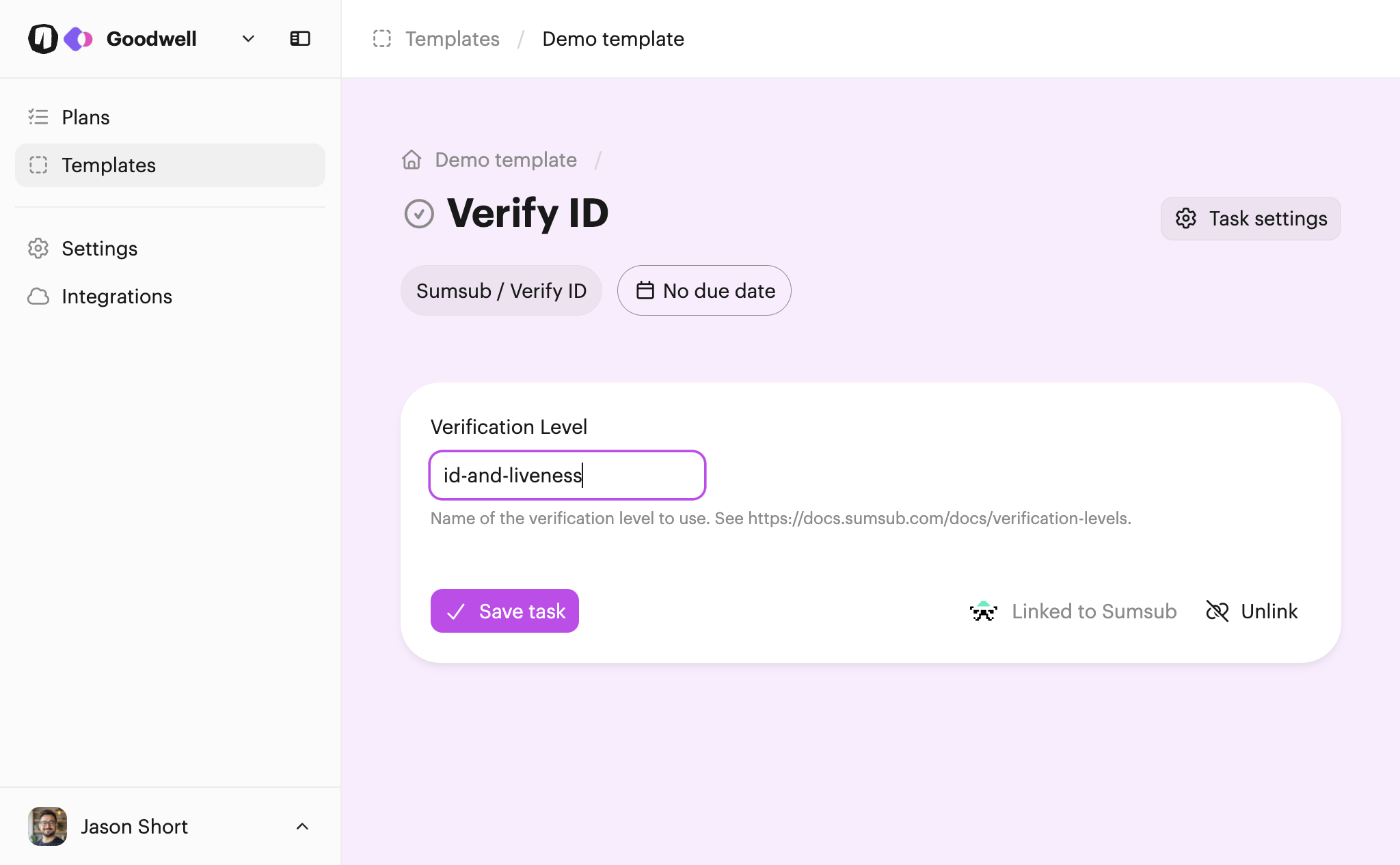
Enter the verification level you chose earlier. In our case, we'll use 'id-and-liveness'. Finally click Save task.
You can test the action by creating a new plan.
Note: Since only the owner participant can complete this type of task, you'll need to access the plan as the owner participant. You can invite yourself to the plan, and then open the link you receive in a private/incognito window to do this.
Once you're in the plan and click into the new task you'll see this start page (if on mobile already):

If you're using a laptop/desktop, you'll see this screen instead that will guide the participant to move to mobile to complete this task, since it usually requires the phone camera:

The participant will then work through the verification steps, following the instructions shown on screen:

Once complete, they'll see a message to confirm on screen:

Finally, they'll see that the task is complete and can now move onto the next task.

Since verifying a participant's identity is likely a crucial step in your plan, it's a good idea to inspect the result of the task each time to make sure everything looks good.
Note: The participant won't ever see the result of their verification. These details are only visible to team users. Participants will only see that the task was completed.
If you now access the plan as a user (by finding the plan in the plans list and opening it up from there), you'll be able to click on the Summary tab or click into the task and see the details of the verified applicant profile in Sumsub that's now been created for them. It looks like this:

Click the applicant URL link to open the applicant in Sumsub if you need to check any other details.
So far you've been using a sandbox app token just for testing. Before you can verify real participants, you'll need to ask Sumsub to allow you to go live. Contact them and they can approve this for you.
Once you're approved, create a production app token, and then visit Integrations > Accounts, find your Sumsub connection, choose Reconnect, and enter the new credentials.
We currently support verifications for individuals that are supported by the Sumsub WebSDK. We may add a business verification task action later. Let us know if you'd be interested in using this.
Sumsub allows you to customize the branding on emails and the verification steps. You can do this in Settings > Branding within your Sumsub account.