 John Jackson
You can lock or hide tabs if you don't want people to be able to access them. This is useful where:
- Tabs are only relevant for later stages/phases. You can choose to lock them until they're needed.
- A tab is only needed for certain scenarios. You can create the tab (probably in a template) and only unhide it if you need it.
- Tabs are only for your internal use. Hiding tabs will make them accessible to the page owner only.
Locked vs. hidden
Locked tabs are visible but can't be accessed. People can only see the tab's name and a lock icon. They can't see anything within it.
Hidden tabs are not visible at all (they can only be access by the page editor).
Changing a tab's visibility
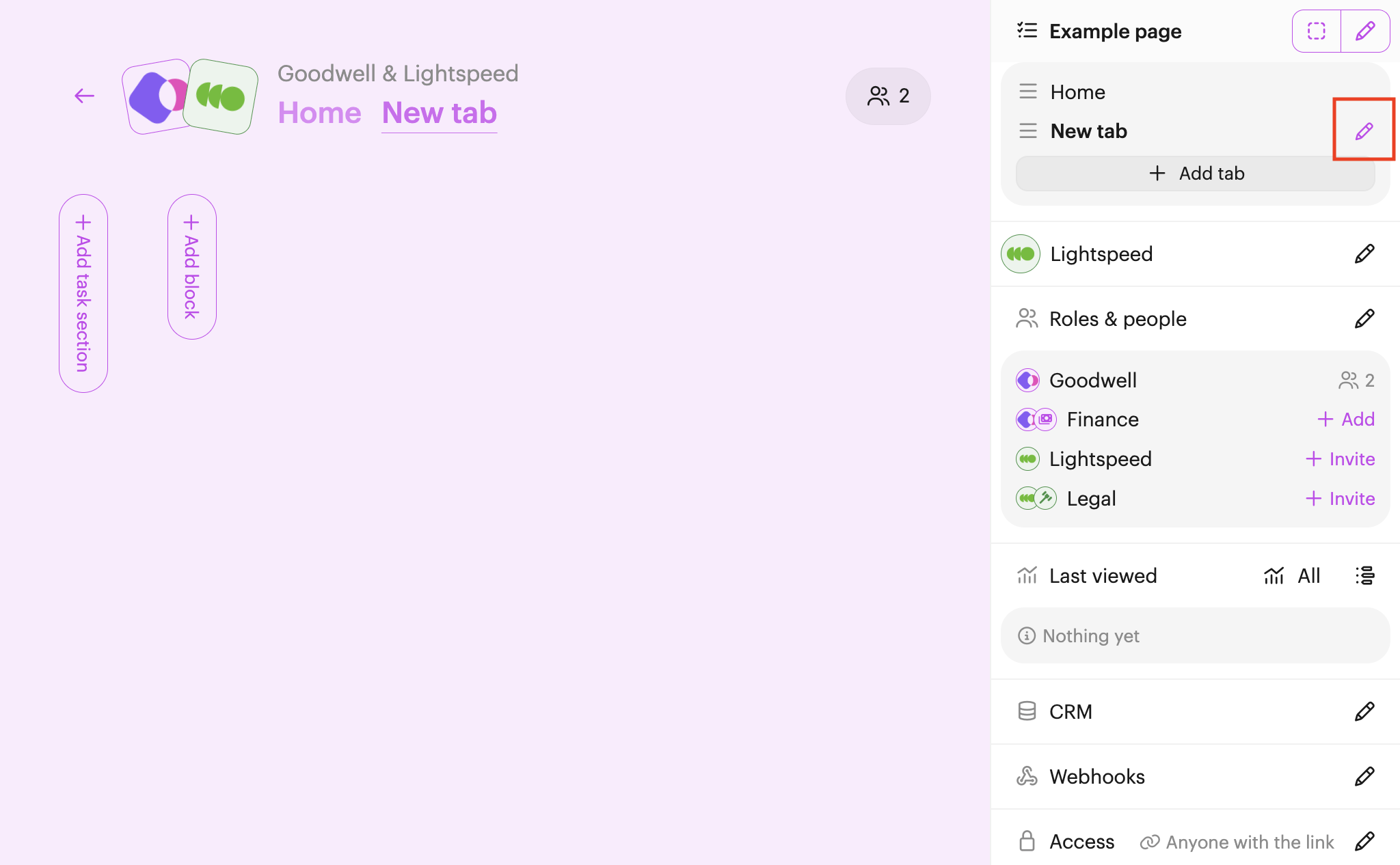
To change a tab's availability, navigate to the tab you want to change, click Edit (pencil icon) next to the tab name in the right-hand editor menu (tabs section, near the top).
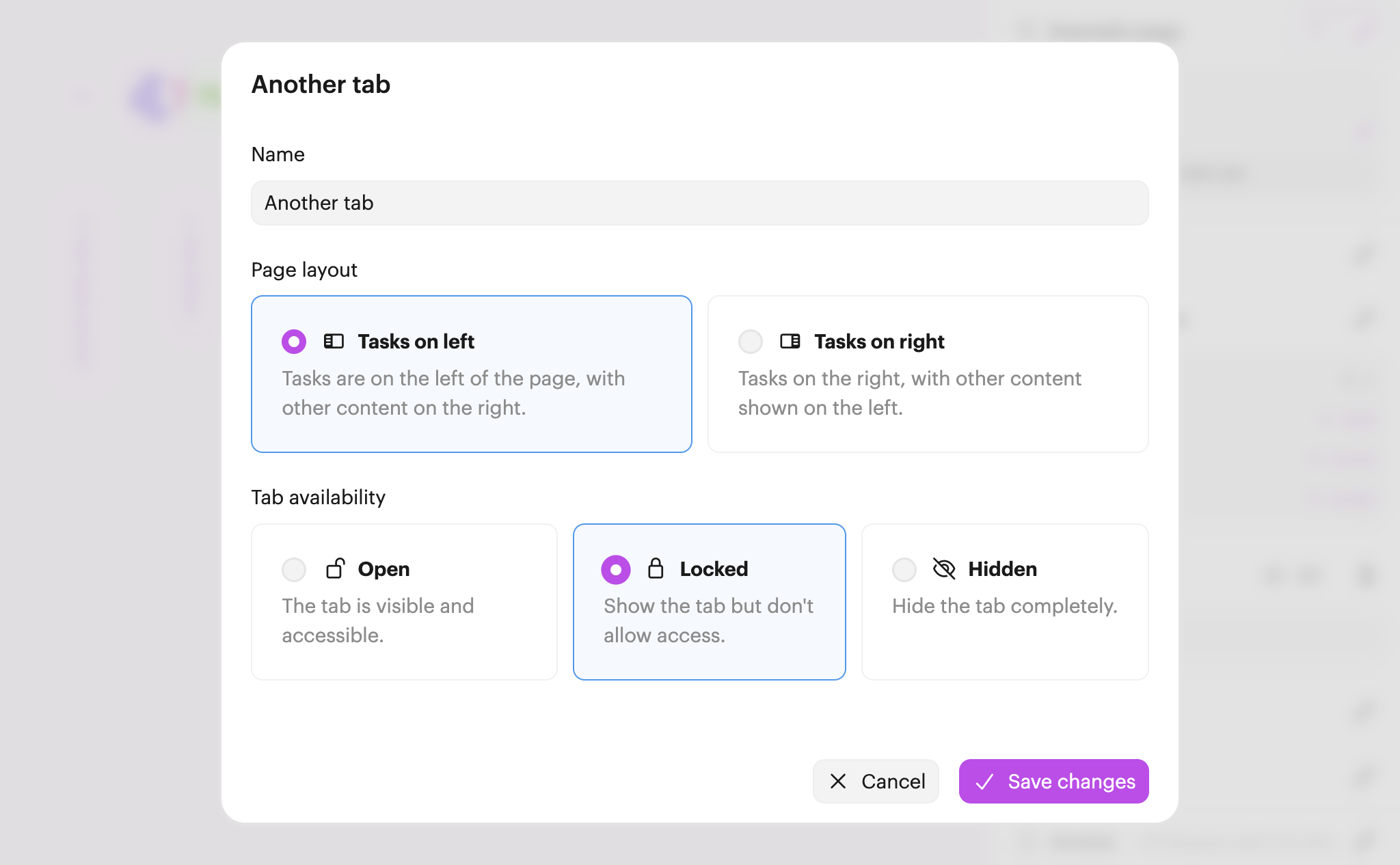
You can now change the Tab availability. Click Save changes to apply.
When a tab is locked, it will look like this:
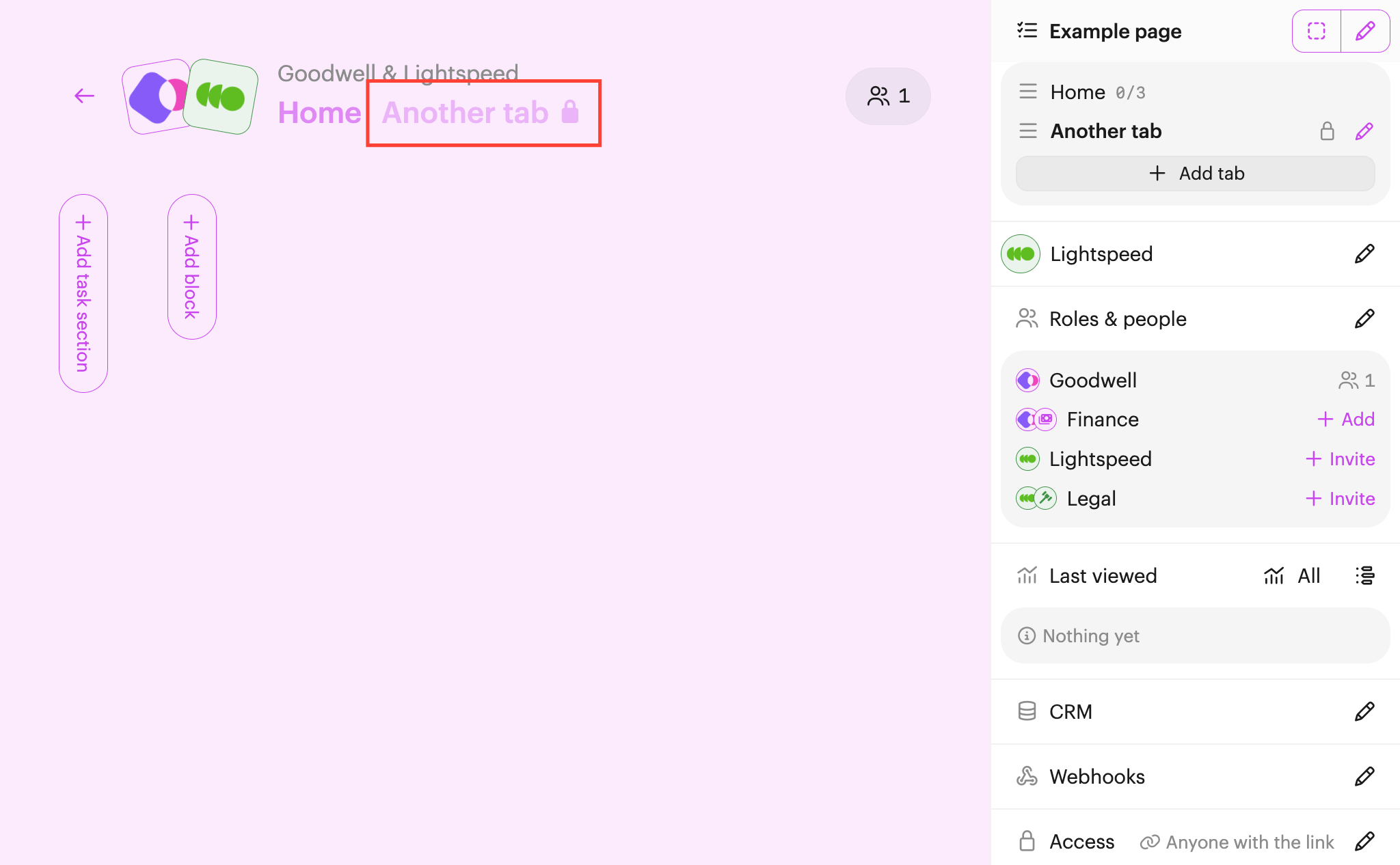
You'll also see a locked/hidden icon next to restricted tabs in the editor menu on the right hand side.
Note: It's not possible to hide or lock the home tab.
 Your branding
 Syncs with HubSpot
 Chases up for you