 John Jackson
Users are the team (internal) users who are added to a plan to manage it on behalf of your team. There are 2 types of users on a plan:
- Owner user: The key team member who is responsible for the plan. The owner user has full access to make changes to the plan.
- Member users: These are additional users that are added to the plan. They can see and do almost everything that the owner user can, except for being able to manage users (they can't add/remove users or change the owner user of the plan.
Note: The exception to the above is that users who are also a team manager can access any plan with permissions equivalent to the owner user. i.e. They can work on any plan, add/remove users, etc. even if they're not a member of it.
User assignment on plans
When plans are created, the plan will initially have owner and member users as defined in the template. You can then make further changes from there if needed.
Adding users to plans
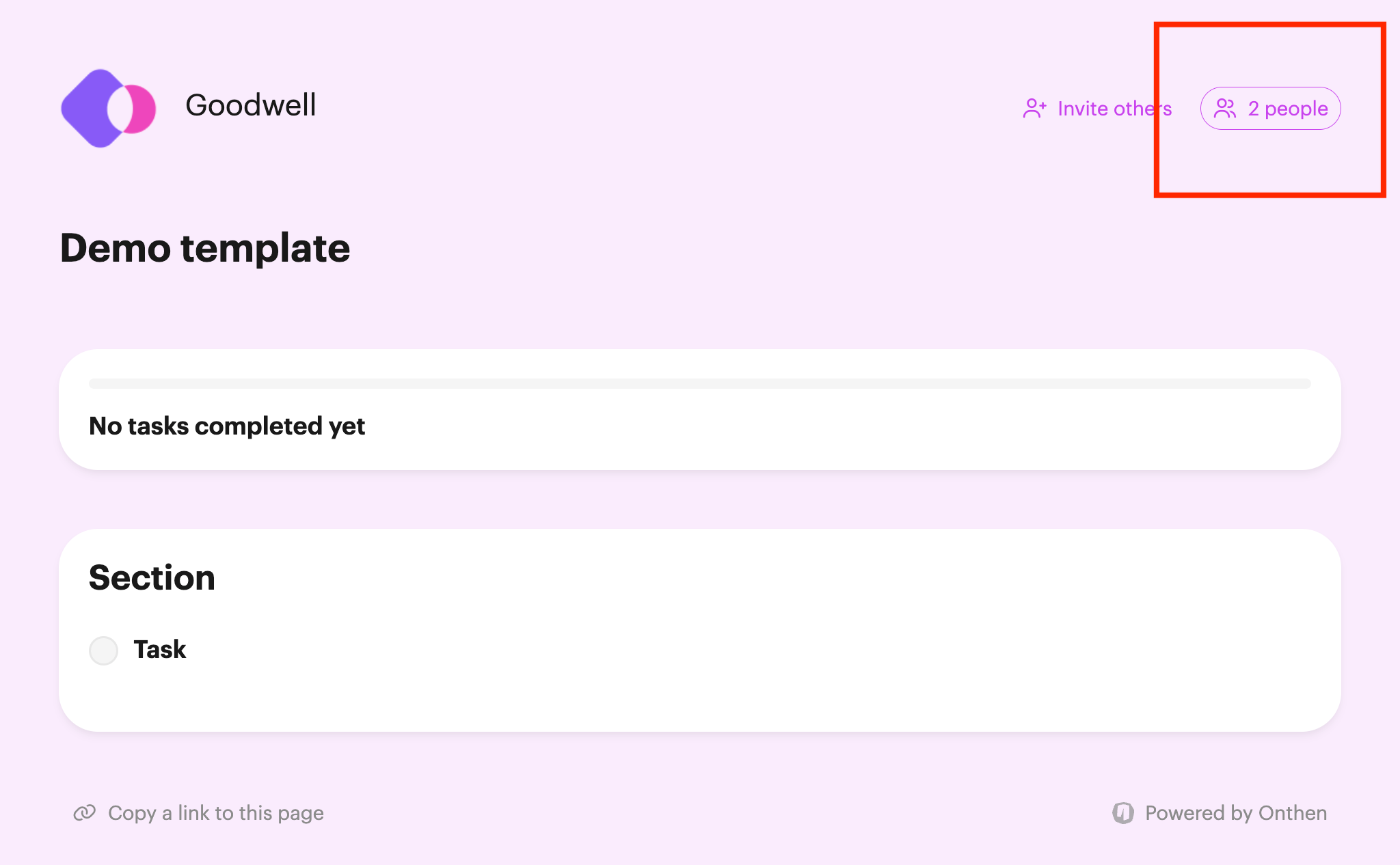
First open the plan you want to add a user to. Then click the Person button at the top right of the page:
You'll see the people page, which is where you can manage the people (participants and users) invited into the plan:
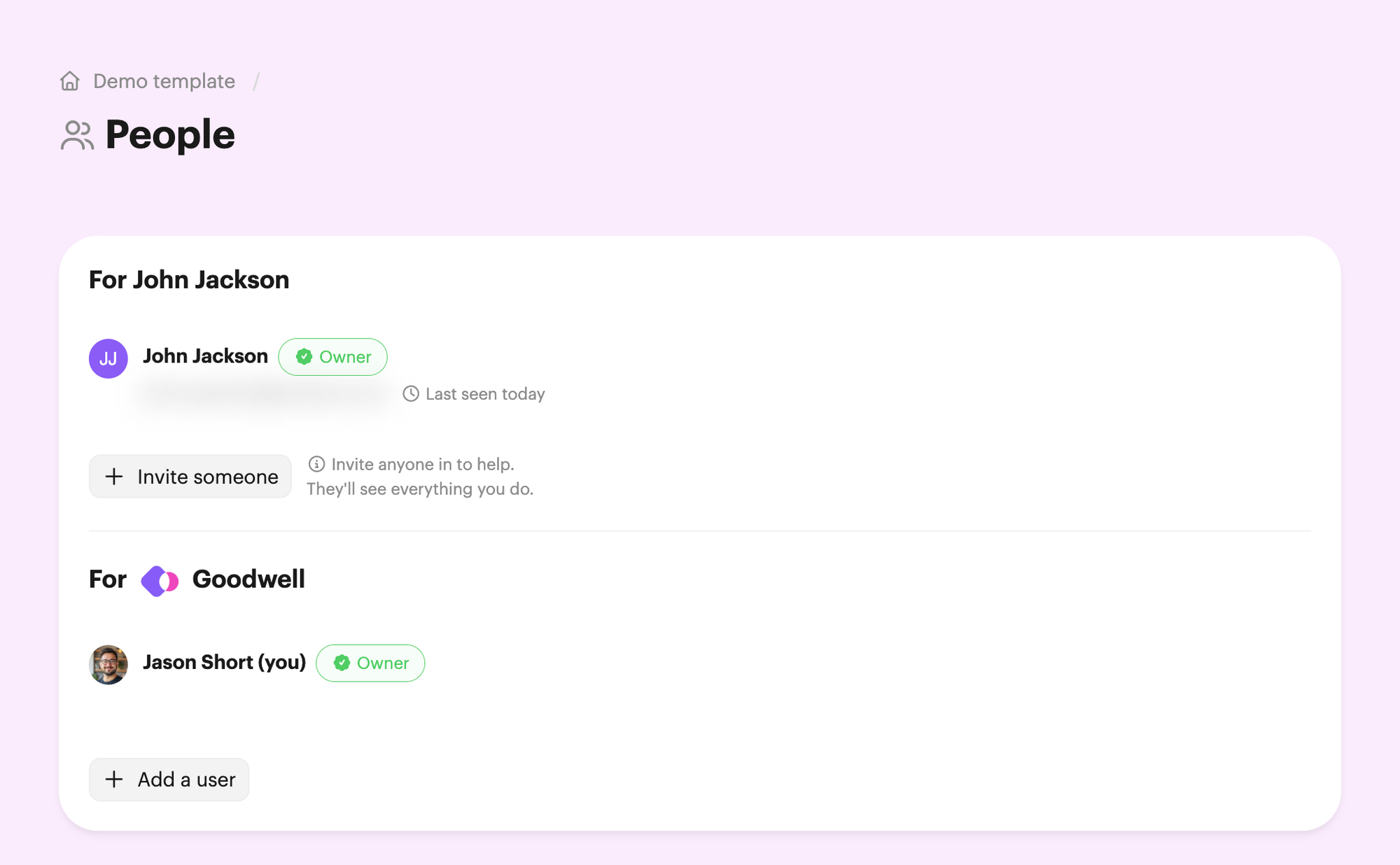
Click Add a user, then select a new user to add to the plan:
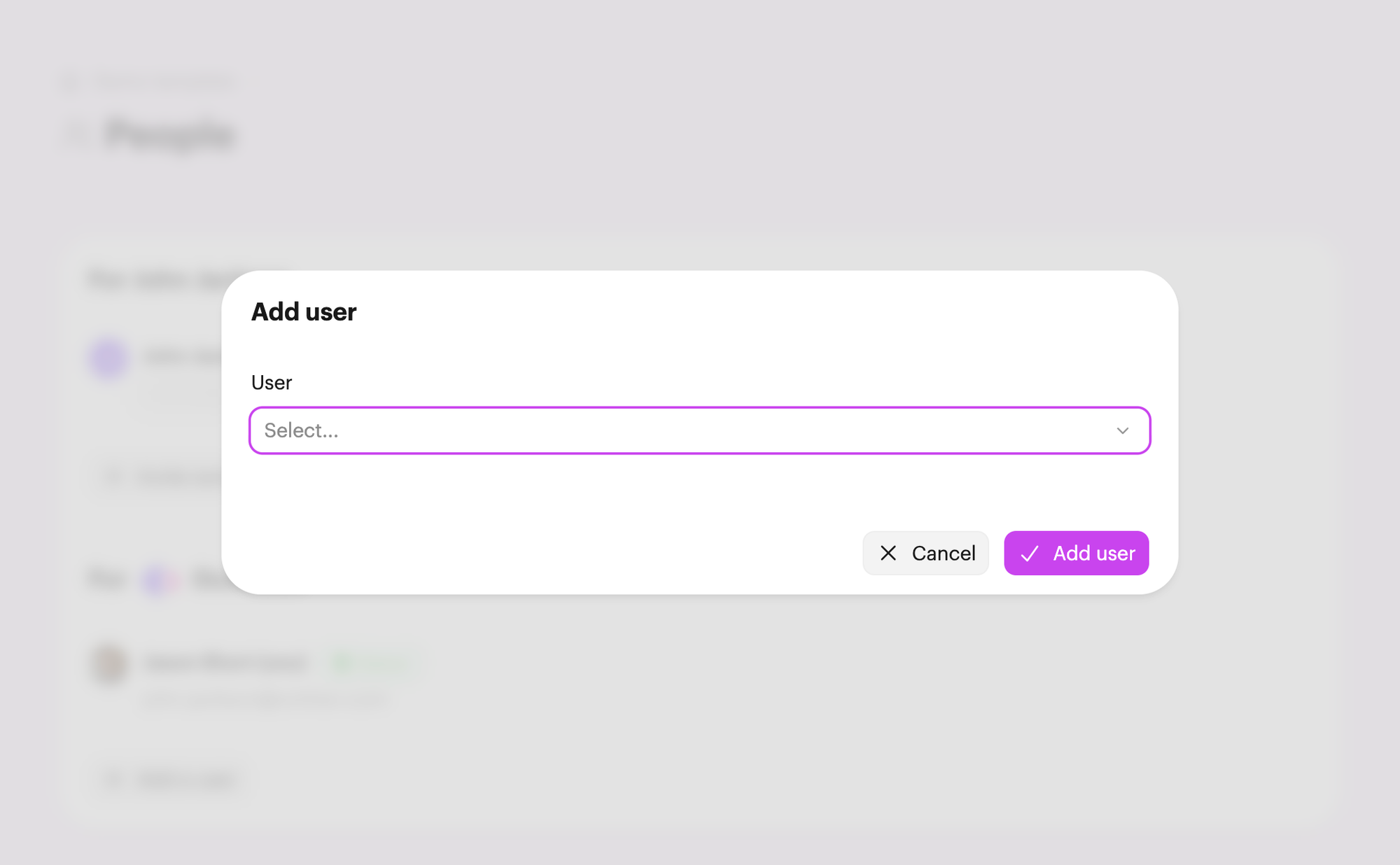
If any tasks are assigned to a custom role, you'll see a list of unassigned roles that you can select for the new user. If you select a role, the new user will immediately be assigned to all the tasks with that role.
Click Add user to save the change. The user will receive a notification.
Removing users or changing the owner
In the same place (if you are the plan owner user or a team manager), you can Remove any user. You can also use the Make owner button to transfer the plan owner to another user.
Adding or removing a role
Use the Add role or Remove role options to change the role associated with the user.
Changing owner from the plans page
There's also options on the plan list to replace the plan owner on one or many plans:
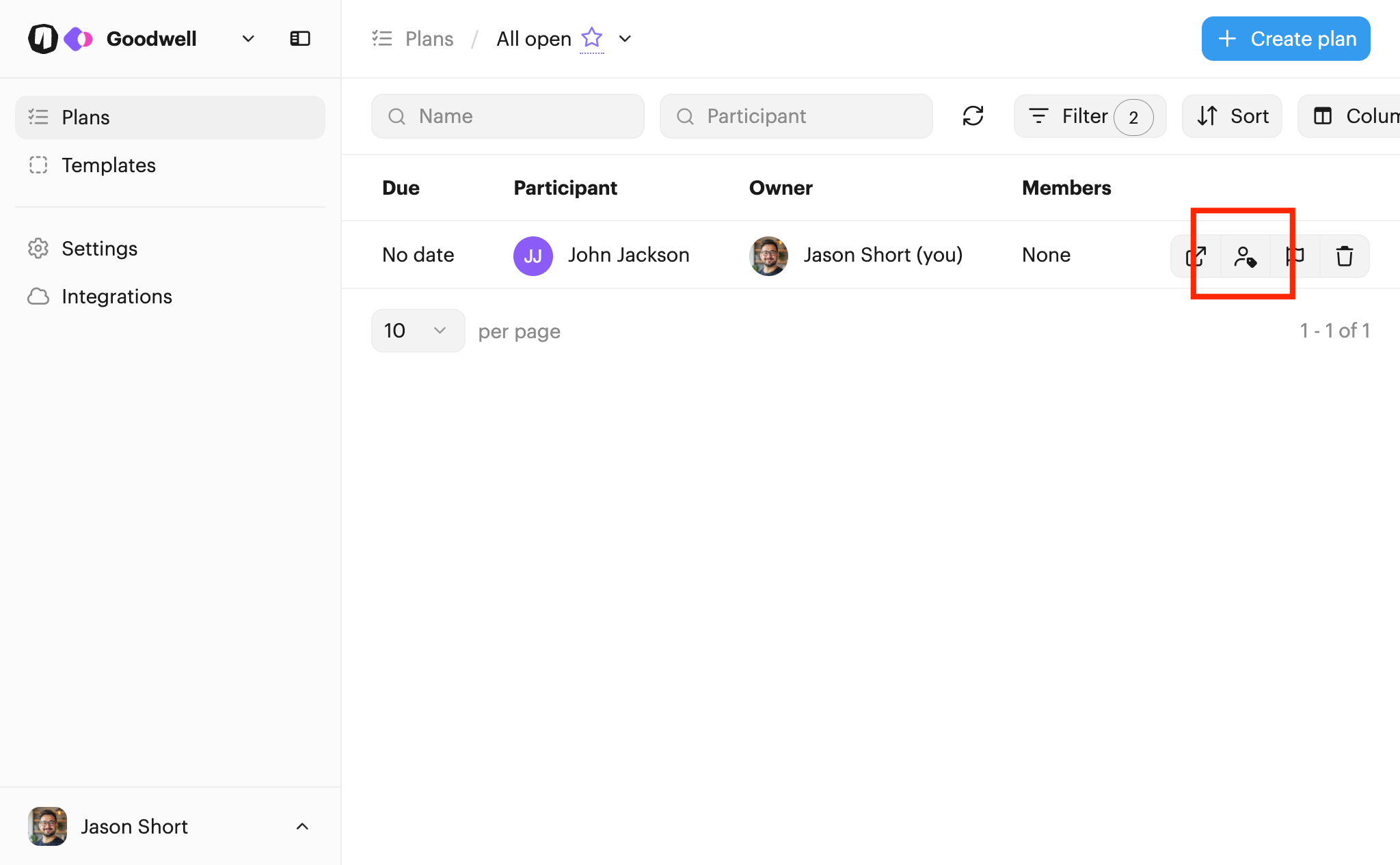
This option will add the selected user to the plan (if needed) and make them the owner. The previous owner user will be demoted to a member but remain on the plan.
Tip: You can also do this in bulk by selecting multiple plans and using the Change owner bulk action.

 Your branding
 Syncs with HubSpot
 Chases up for you