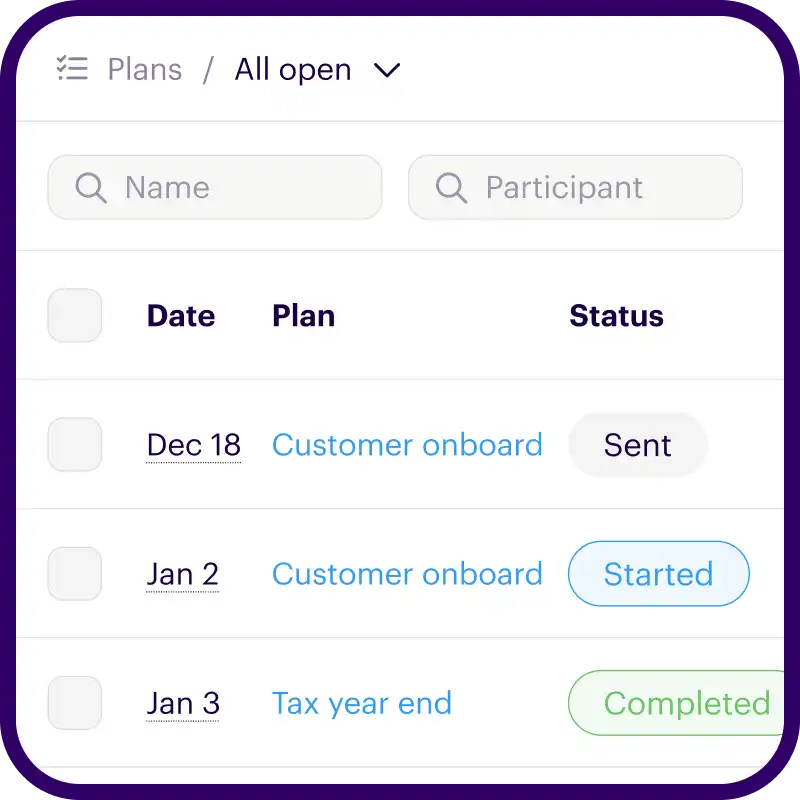

Onthen allows you to create onboarding 'plans' that you can send to customers, partners, prospects, or anyone else (we call them 'participants'). Each plan has a set of tasks that a participant needs to complete.
Our Sign template with Docusign task allows you to add an e-signature step to your Onthen plans. It makes it easy for you to obtain a legally binding agreement between your business and the participant.
How it works
This task allows you to connect your Docusign account and ask the main participant to sign a document.
When the participant opens the task, they'll first see a message to explain they'll be completing the task through Docusign. Next, they're redirected to Docusign to complete the signing process. Finally, they're redirected back and can continue on to the next task in the plan.
Note: This task can only be completed by the owner participant, i.e. not by other participants that you or the owner participant invite into the plan. This is so that you can always ensure the legally binding agreement is between you and the participant you originally invited.
If a secondary participant tries to complete the task, they'll see a message explaining this. They can still comment on the task if needed.
Connecting Docusign
Follow these steps to connect your Docusign account first. You can also connect during the setup of your task action if you prefer, it's the same process.
Click Integrations > Accounts > Connect. You'll see a list of accounts that Onthen integrates with:
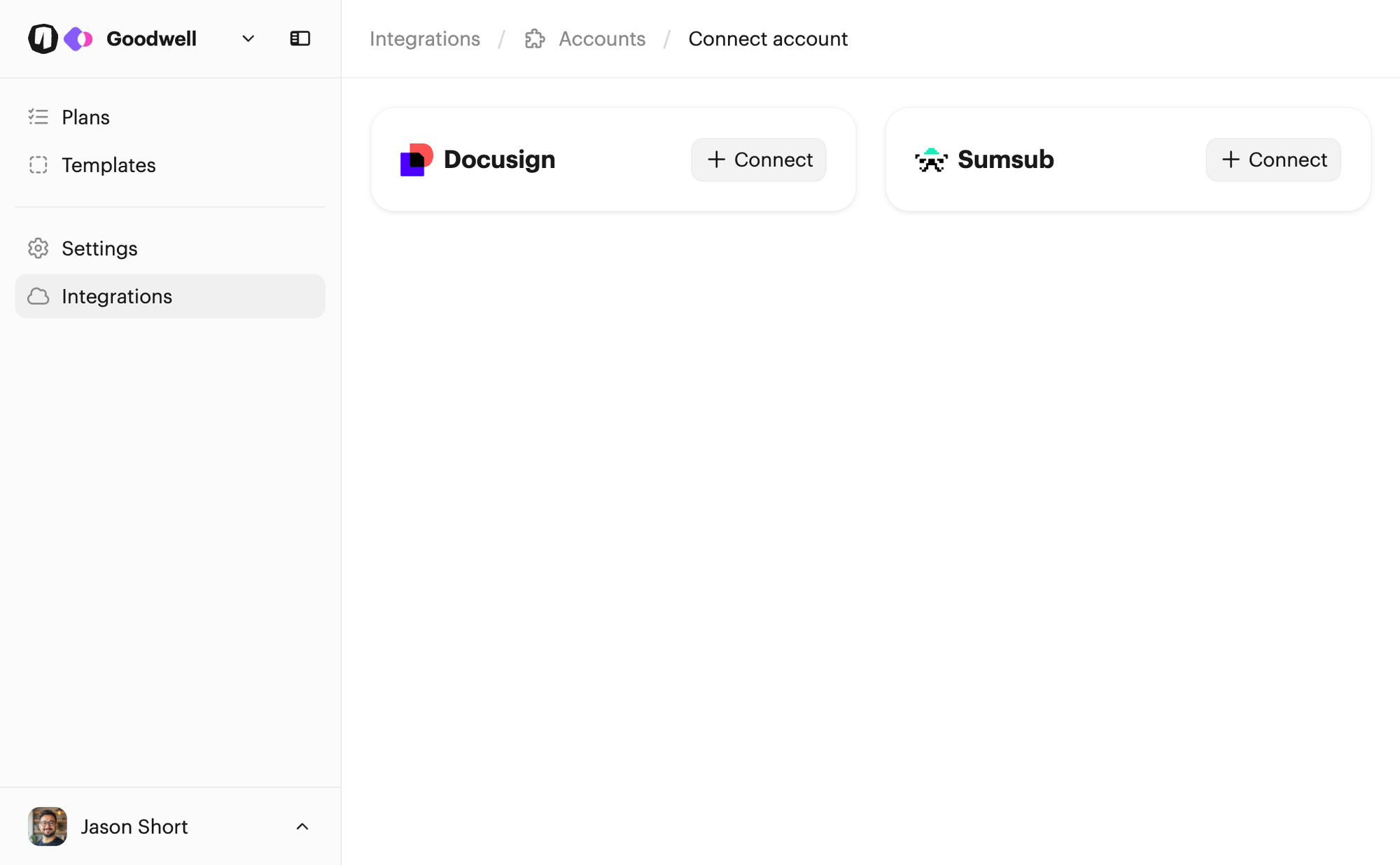
Find the Docusign panel and click Connect. This takes you to Docusign to authorize the connection:
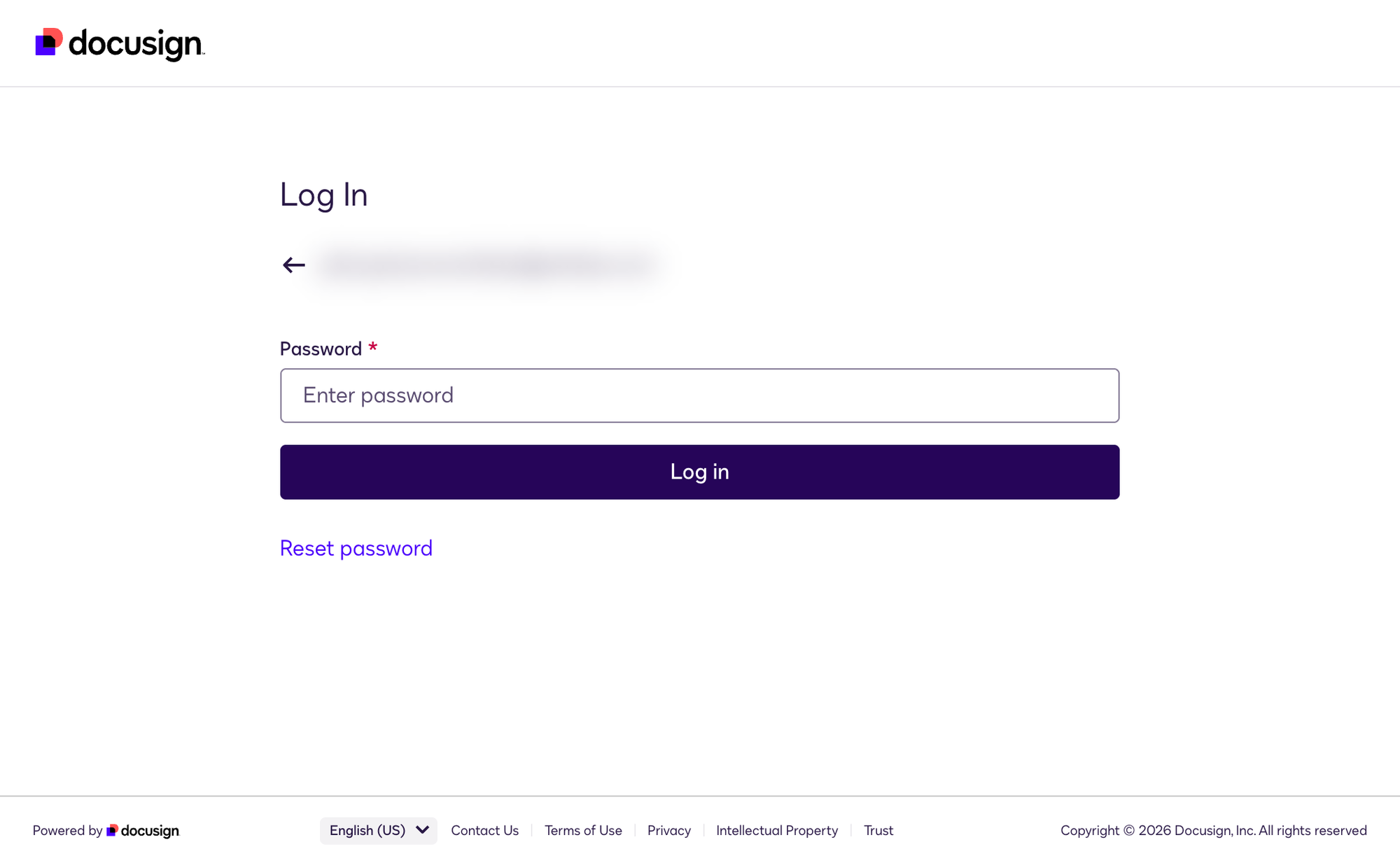
First sign in to your user profile or enter your password if you're already signed in. Once you've done that, you should see confirmation that you are connected and you'll next be asked to select an account:
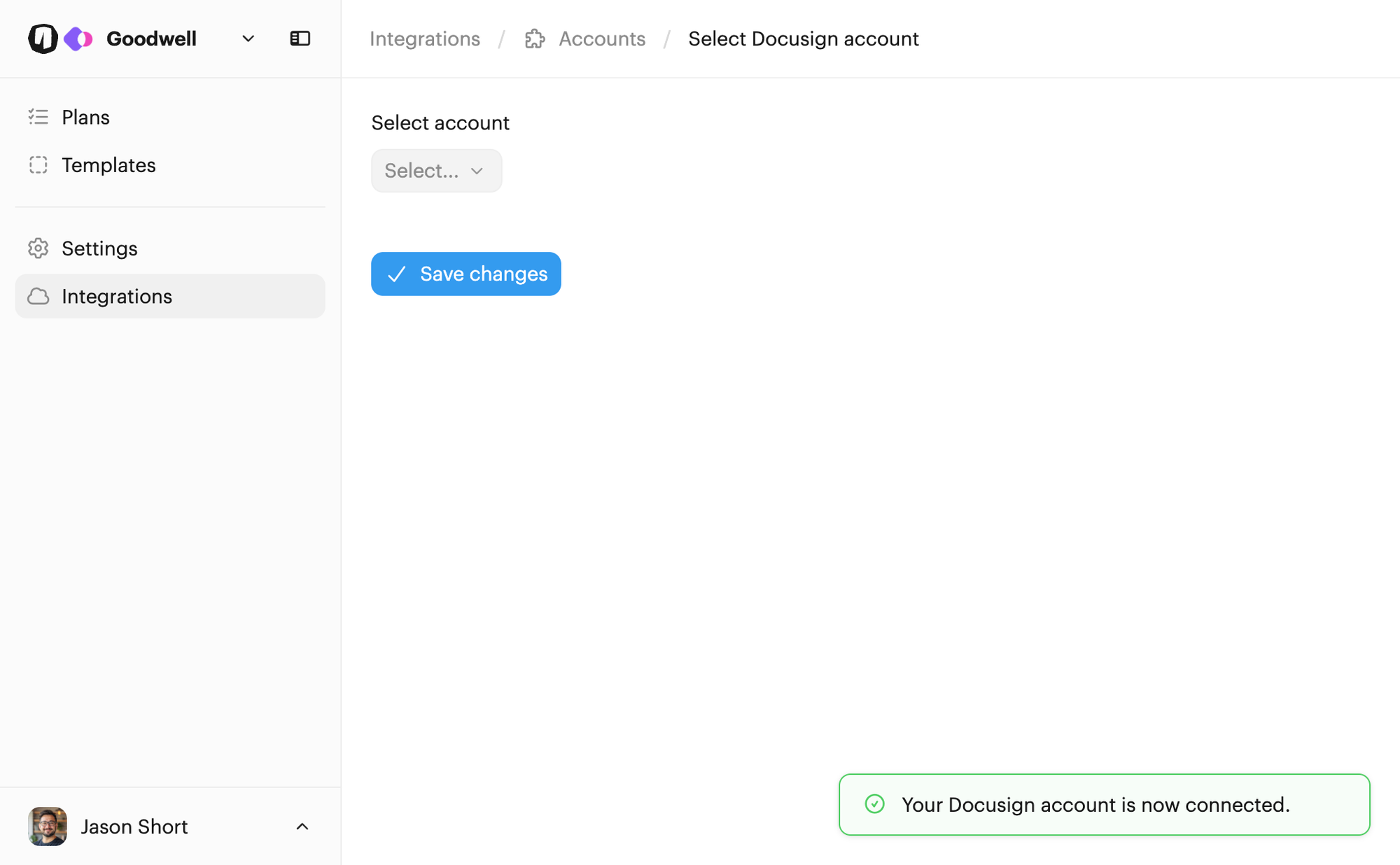
Finally, choose the Docusign account you want to use with Onthen and click Save changes to complete.
Note: If you want to use multiple Docusign accounts in the same team, repeat the above steps and choose a different account each time. Each connection will show the account it's linked to.
Now that you have a Docusign account connected, you can prepare a template to use with the task action.
Preparing a template
You'll need to create a Docusign template that Onthen will use to setup the task.
Docusign templates allow you to create a standard document, with set recipients and recipient roles, and signing fields. Onthen will then use this template to create the signing envelope each time.
It's up to you how you want to setup the template. Create the signing experience you need.
The only thing you must do is create a recipient role for the Onthen participant. To do this, make sure there's a recipient with just a role set, leaving the name and email blank.
It should look something like this:
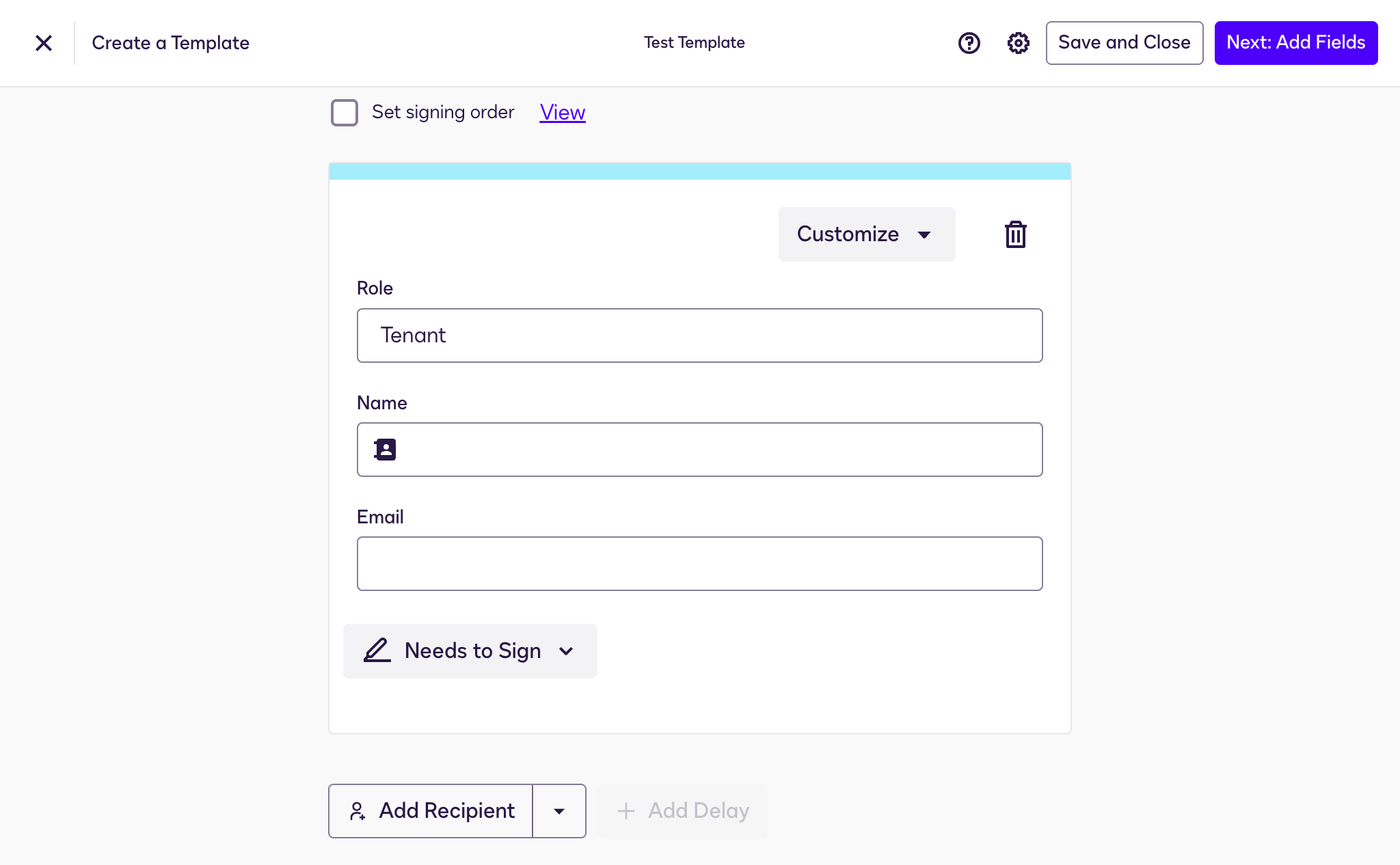
In this case we've named the role Tenant, but you can use any role name you want. Make a note of it as you'll need it when you setup your task action.
Of course, you'll also need to add at least one signature field for this role too (otherwise there would be nothing to sign).
After you save your template, click on its name in the list of templates. You'll see a page like this:
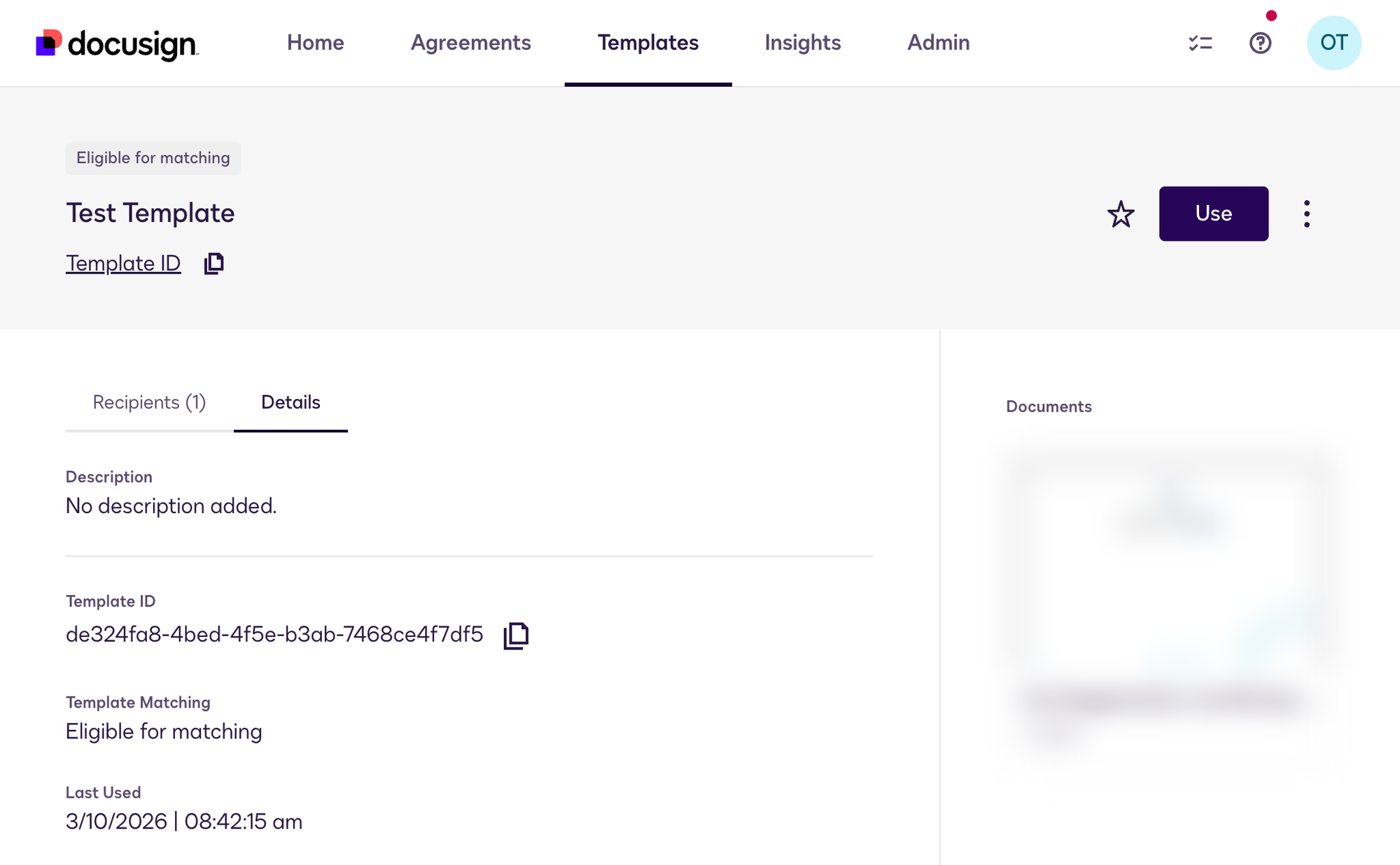
Finally, click the copy icon next to the Template ID and make a note of this too, you'll need this when you setup the task.
At this point you should have 2 things noted:
- The template ID (e.g. de324fa8-4bed-4f5e-b3ab-7468ce4f7df5)
- The name of the role your participant will sign for (e.g. Tenant)
Add the task action
Head back over to Onthen and open the Onthen template you want to add a signing step into.
In the section you want to add the task, click Add task. Select Docusign / Sign template as the task type. Add a description, due date, etc. if you need. Click Add task to create the new task.
When the task is saved, click on its name to configure it. You'll see a page like this:
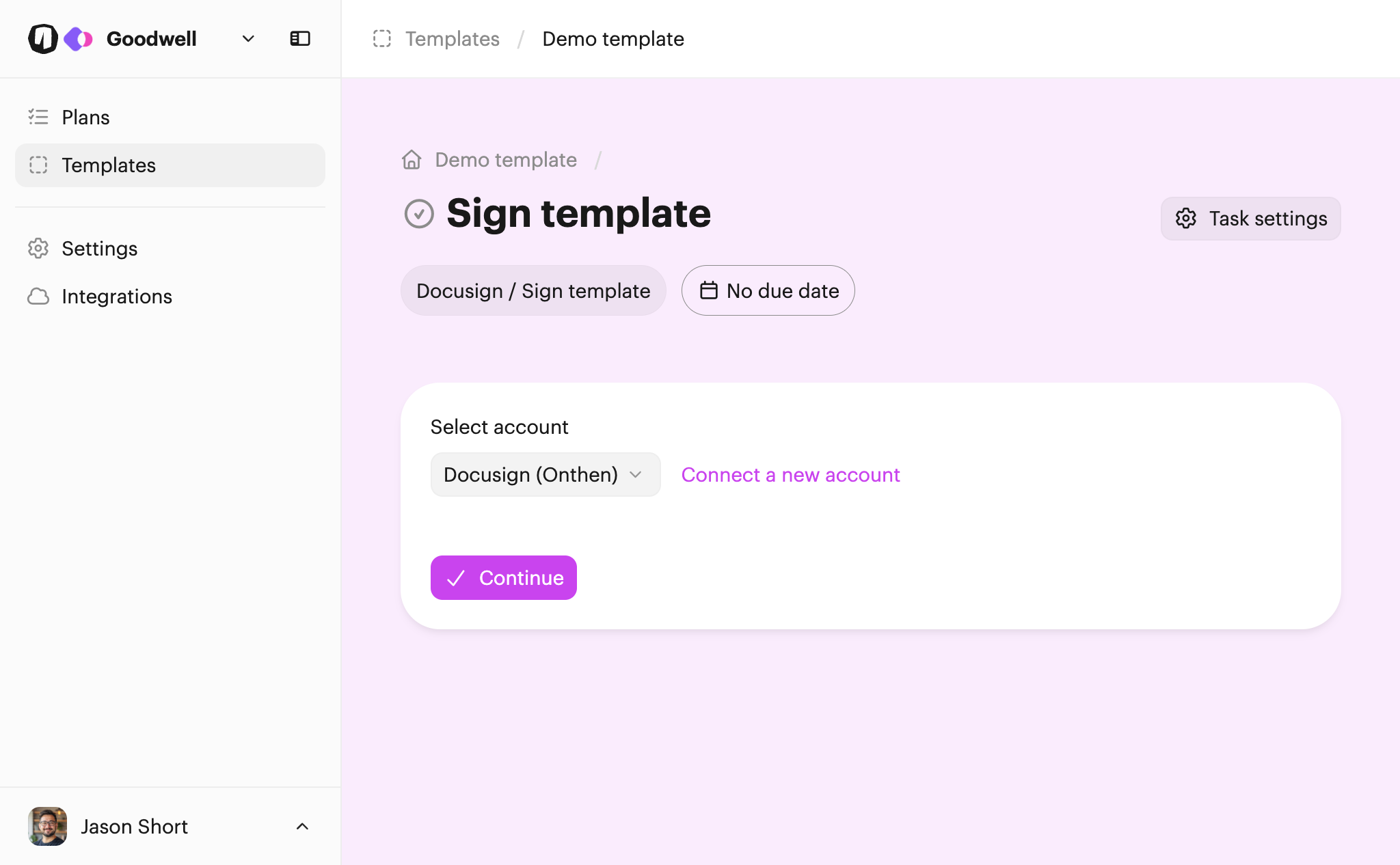
Select the Docusign account you created earlier and click Continue. Next you'll see the configure page:
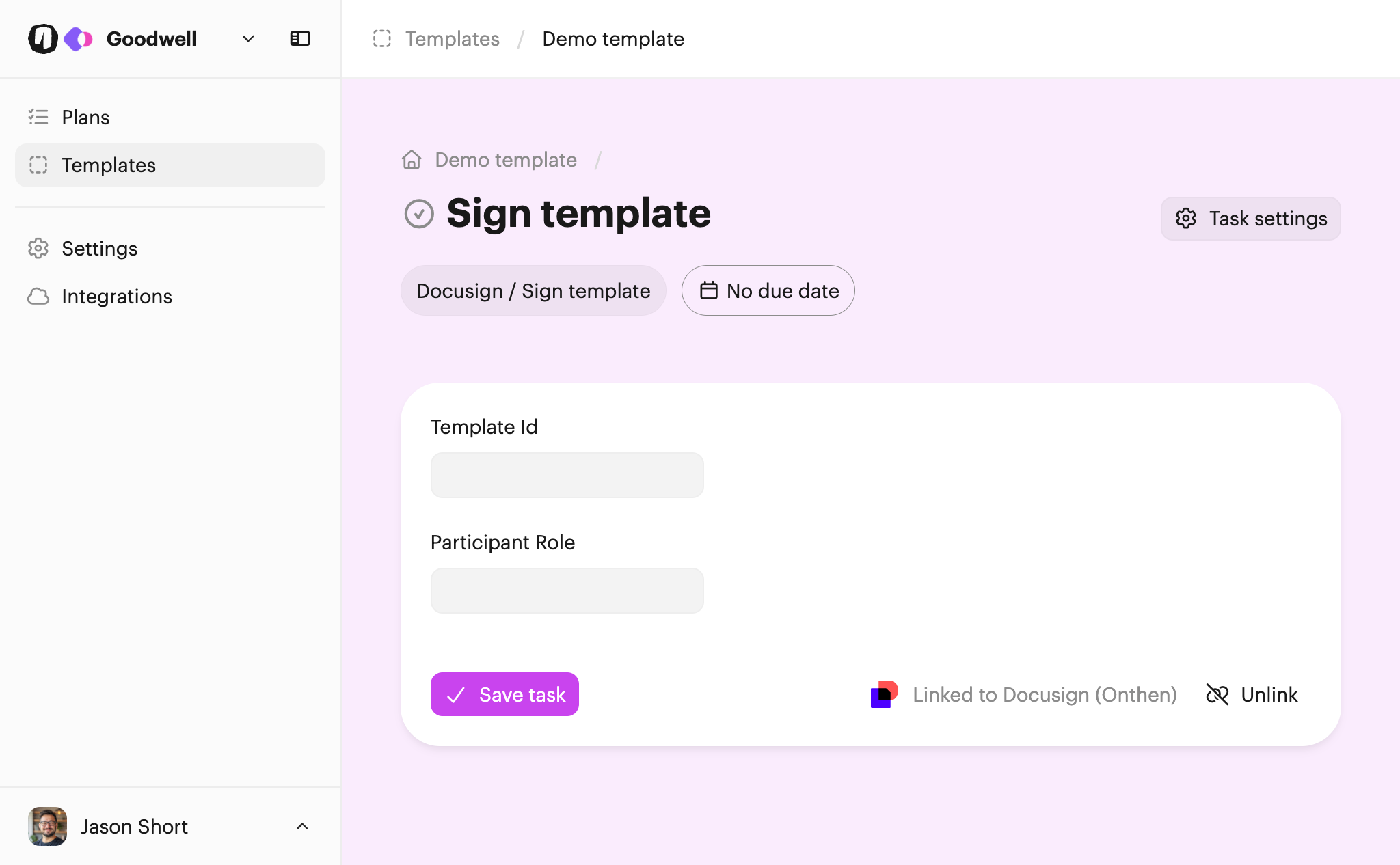
Copy and paste the template ID and the participant role (the Docusign recipient role) you noted in the previous steps. Make sure you enter the recipient role exactly as you entered it in Docusign.
Now Save task and your task action is ready!
Using the task action
You can test the action by creating a new plan.
Note: Since only the owner participant can complete this type of task, you'll need to access the plan as the owner participant. You can invite yourself to the plan, and then open the link you receive in a private/incognito window to do this.
Once you're in the plan and click into the new task you'll see this start page:
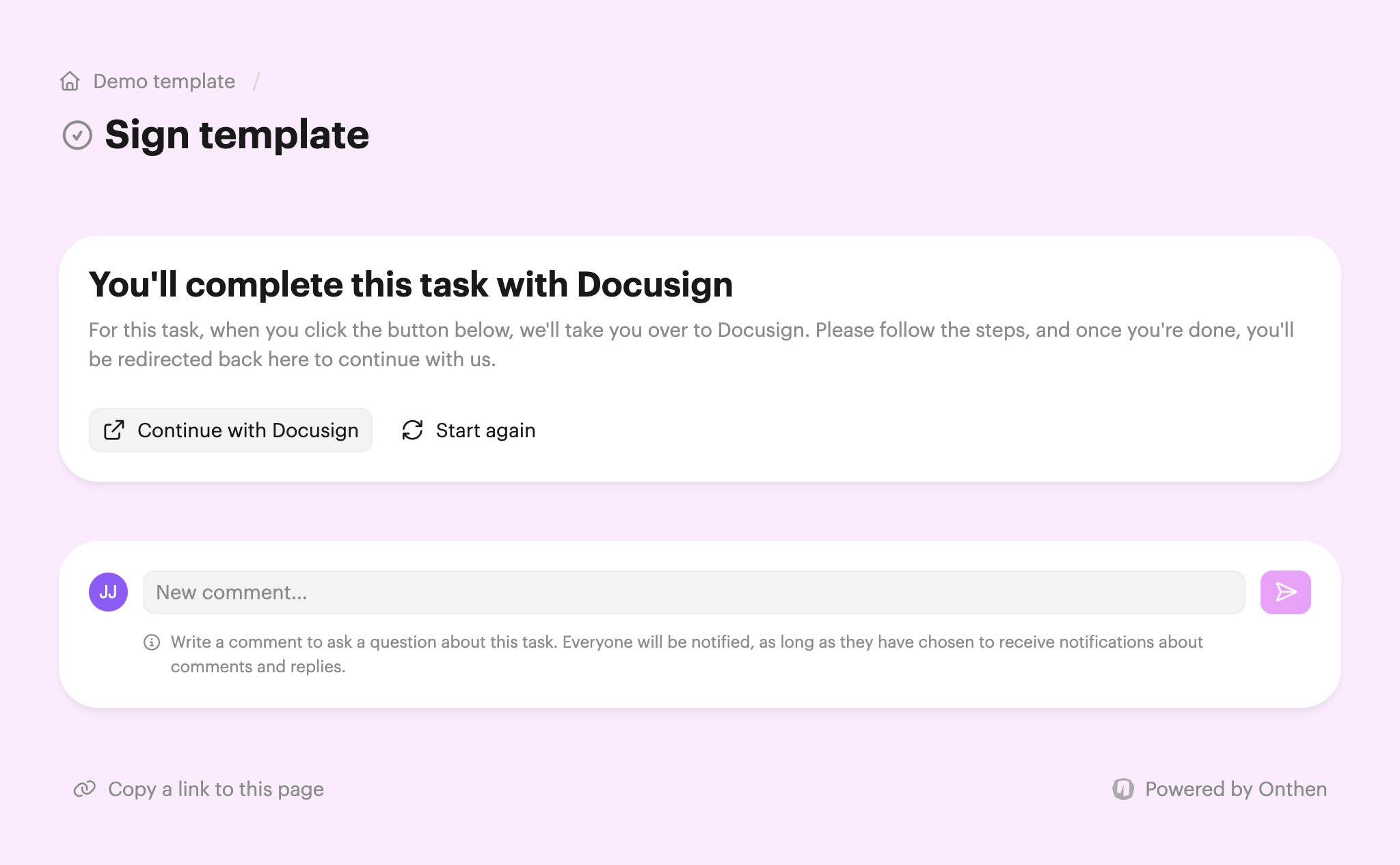
Click Continue with Docusign, which creates the Docusign session and redirects the participant there:
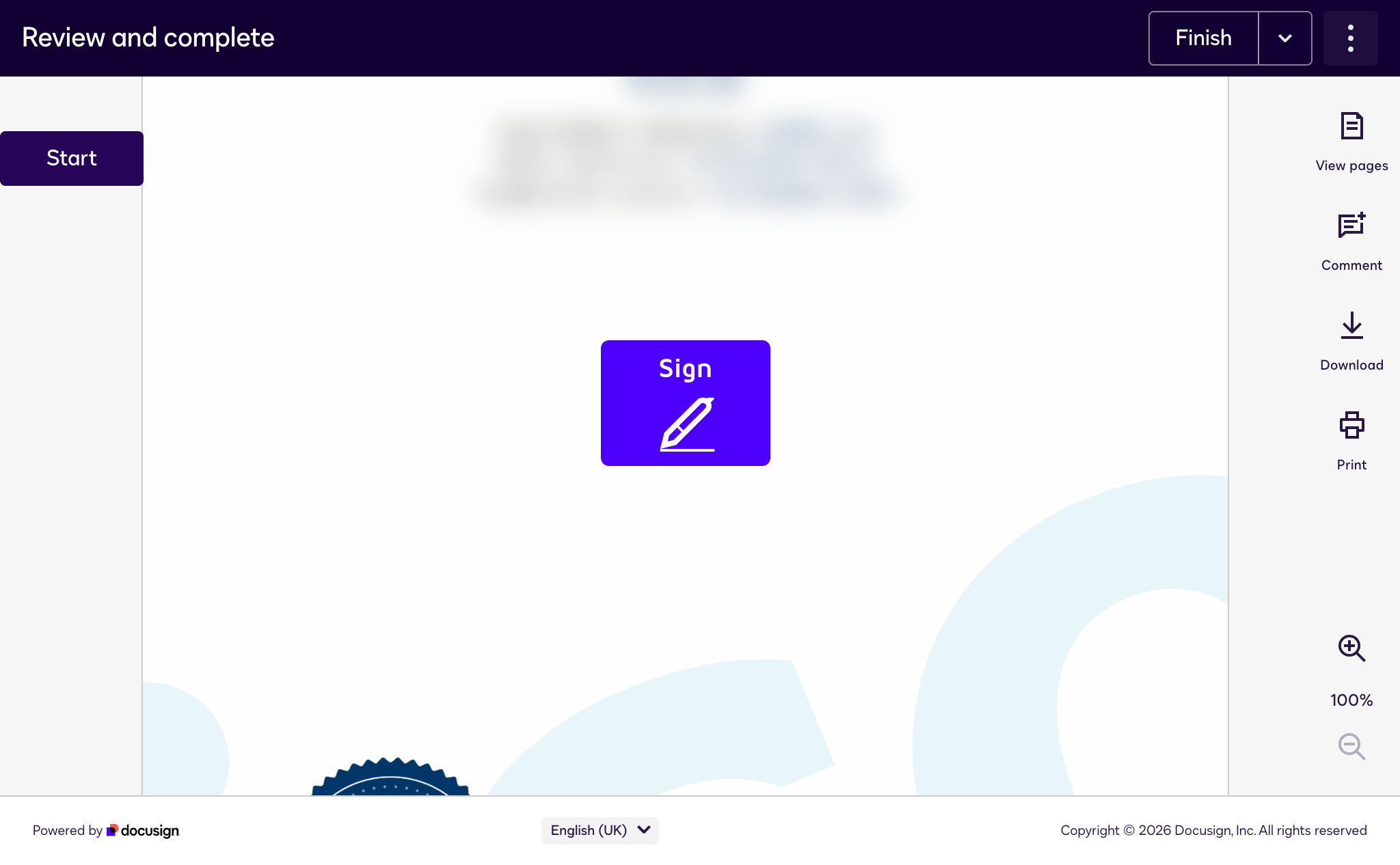
The participant will then follow the steps to complete/sign all the fields that are assigned to them, and then click Finish once done.
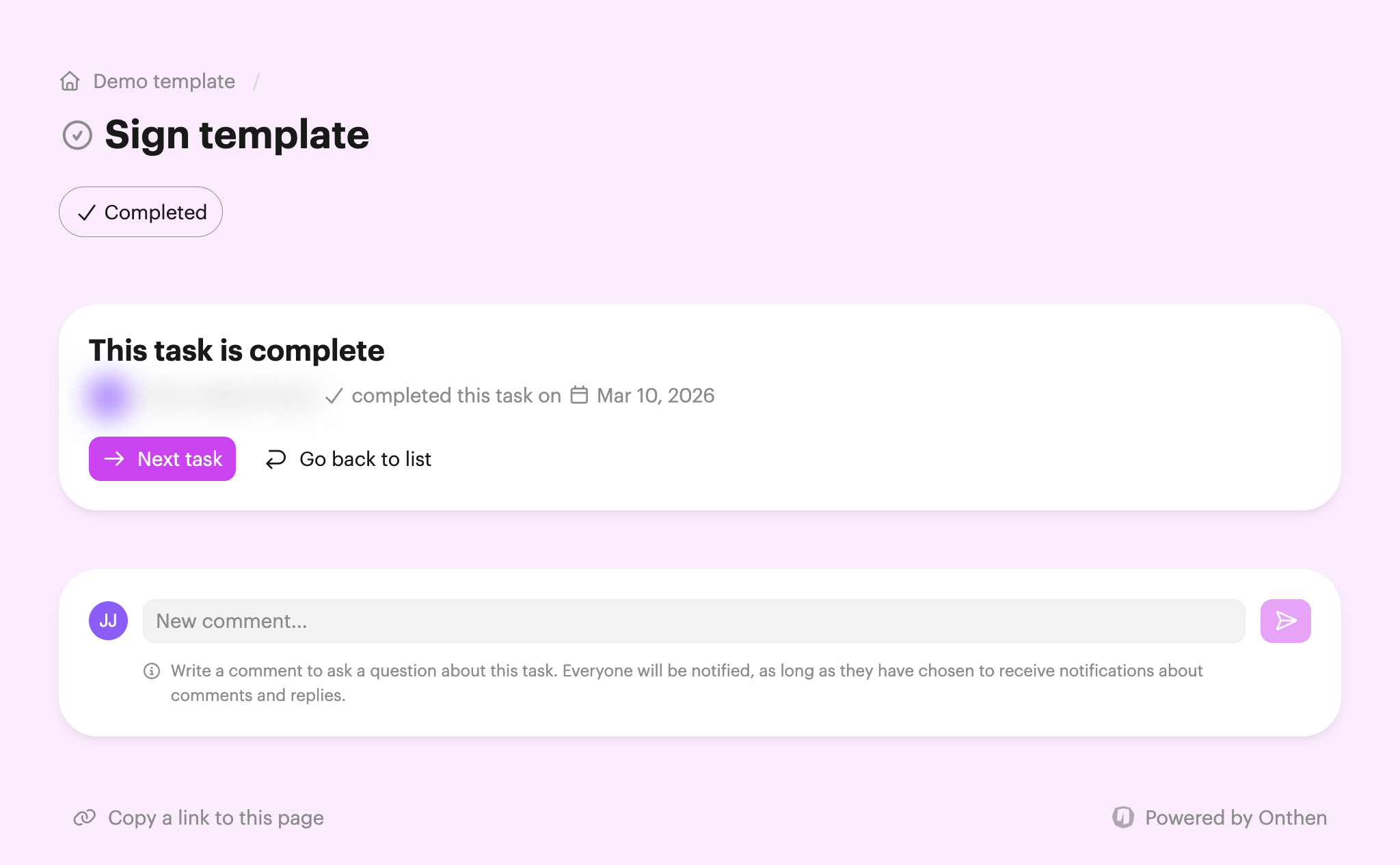
Finally, they're redirected back to Onthen:
Checking the result
Since getting a legally binding signature is likely to be a crucial step in your plan, it's a good idea to inspect the result of the task each time to make sure everything looks good.
Note: The participant won't ever see the result of their signing session. These details are only visible to team users. Participants will only see that the task was completed.
If you now access the plan as a user (by finding the plan in the plans list and opening it up from there), you'll be able to click on the Summary tab or click into the task and see the details of the envelope that the participant has signed. It looks like this:
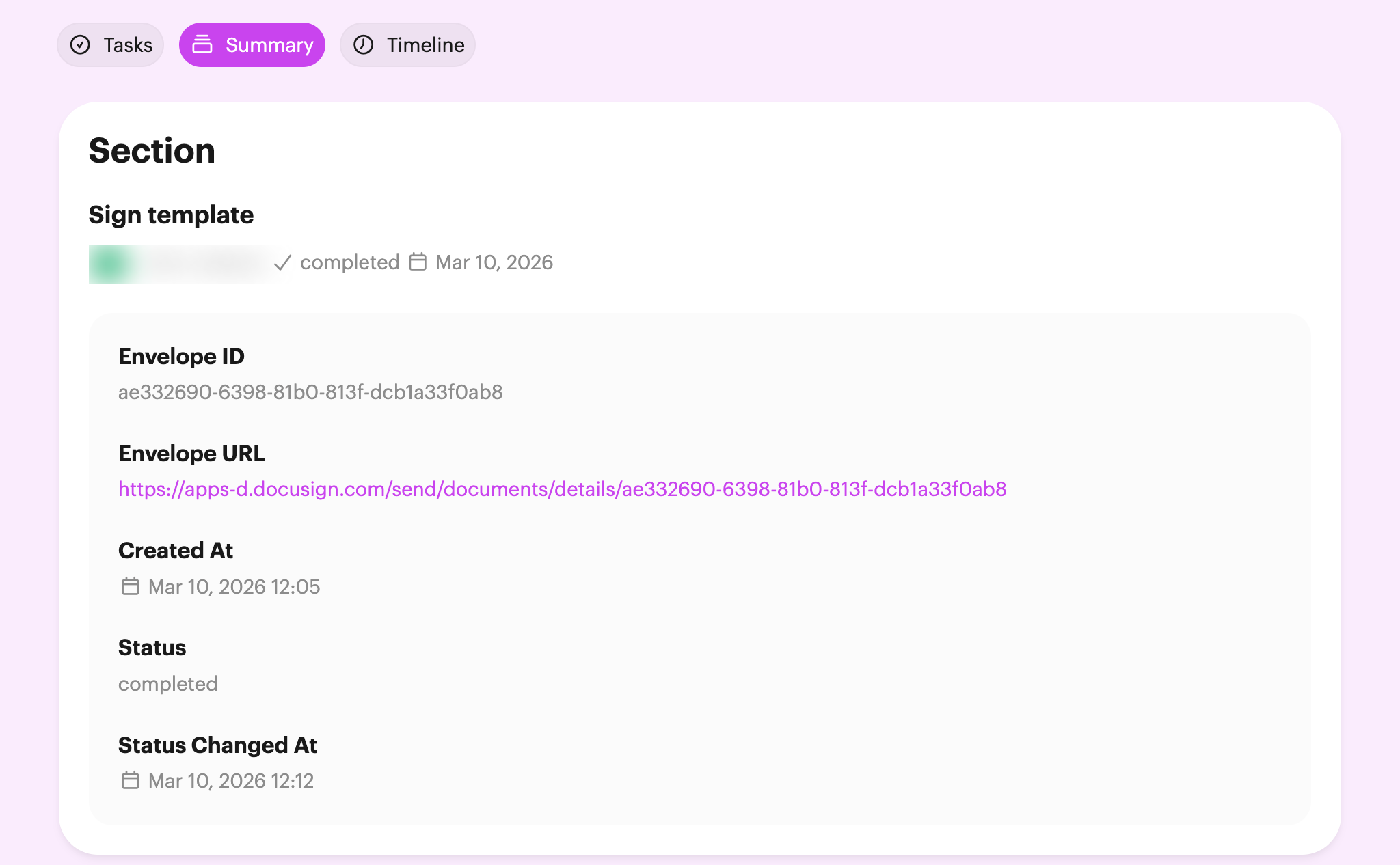
Click the envelope URL link to open the envelope in Docusign if you need to check any other details.
Frequently asked questions
Can I have multiple people sign?
This task action is limited to obtaining the signature and form fields required of one role on the Docusign template. This is the role the owner participant has, usually as the customer/buyer.
However, you can add as many other roles into the template as you want. Just make sure these roles have a name and email address already defined in the template. The other roles will be able to complete their actions via the email they'll receive after the participant has signed.
Will emails still be sent by Docusign?
Yes, just like any other signing envelope, recipients are emailed when there's a document to sign, and once the signing is complete. The participant won't need to use this email as they'll sign directly within the flow of their Onthen plan.