
Onthen allows you to create onboarding 'plans' that you can send to customers, partners, prospects, or anyone else (we call them 'participants'). Each plan has a set of tasks that a participant needs to complete.
Our HubSpot integration allows you to create new plans from HubSpot, and syncs details of plans with objects in the CRM.
How does it work
The HubSpot integration supports the following features:
- Adds an App Card to records to allow users to create a new plan or view all plans for a contact directly from HubSpot.
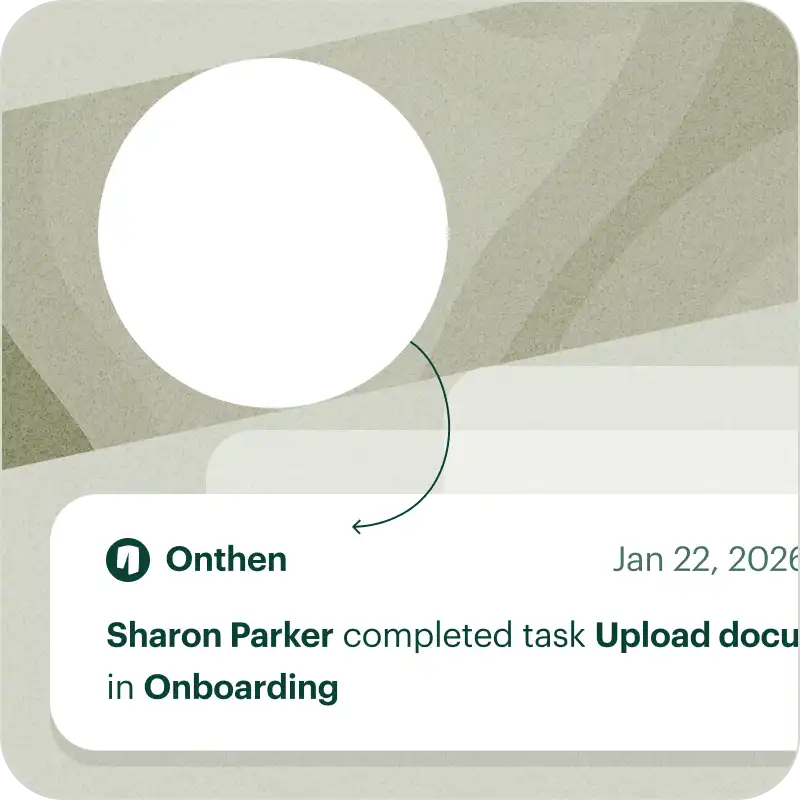
- Events are added to the timeline when the plan starts, when tasks are completed, and when the status of the plan changes.
- Syncs form task fields to properties in the HubSpot record.
- Uploads photos or documents to the HubSpot record.
Connecting HubSpot
Click Integrations > CRMs. You'll see a list of CRMs that can be connected. Find the HubSpot panel and click Connect.
This takes you to HubSpot to authorize the connection:
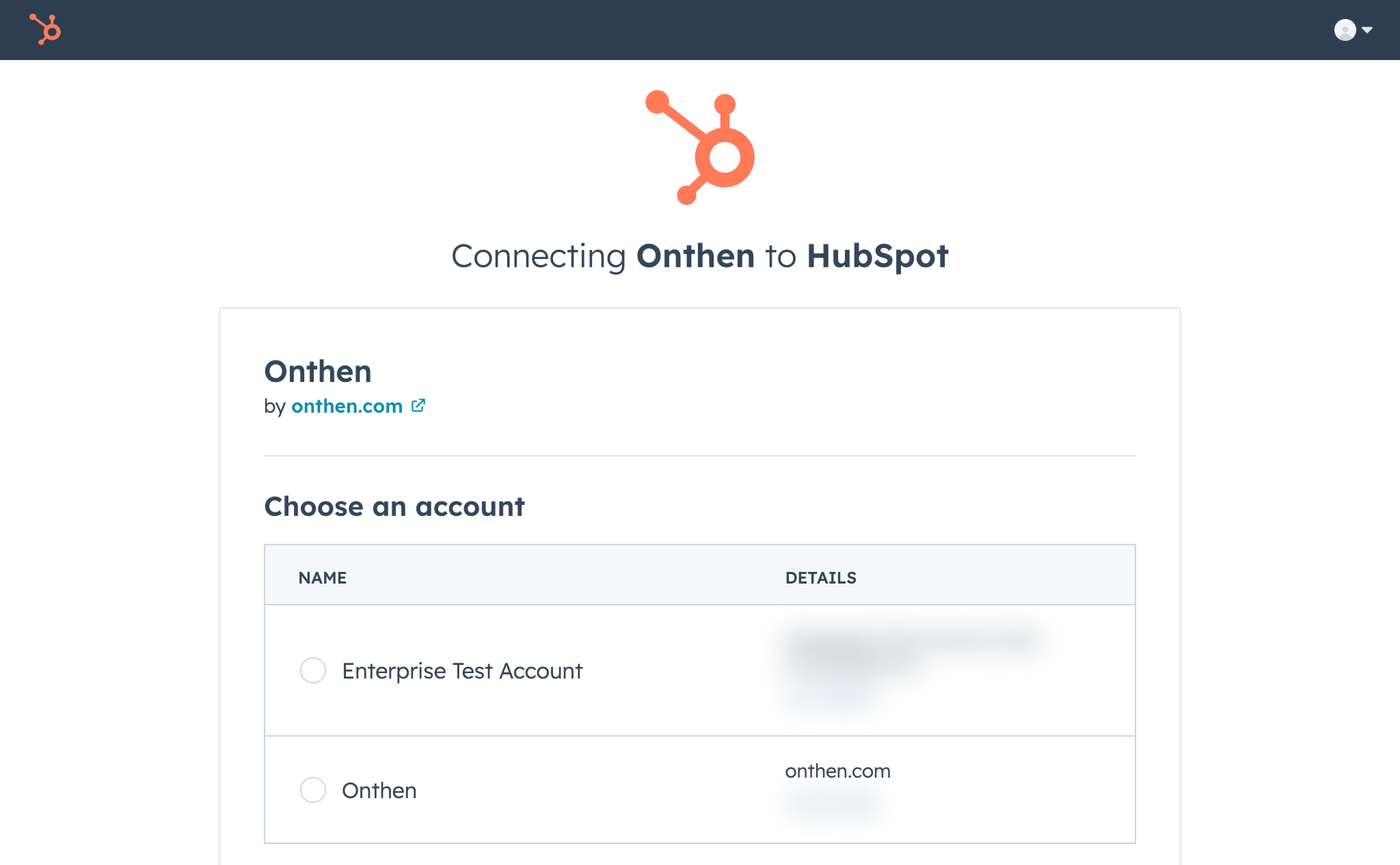
First sign in to your user profile or enter your password if you're already signed in. Then follow the steps to select an account to connect and authorize.
Once you've completed the connection, you'll see that HubSpot shows as connected:
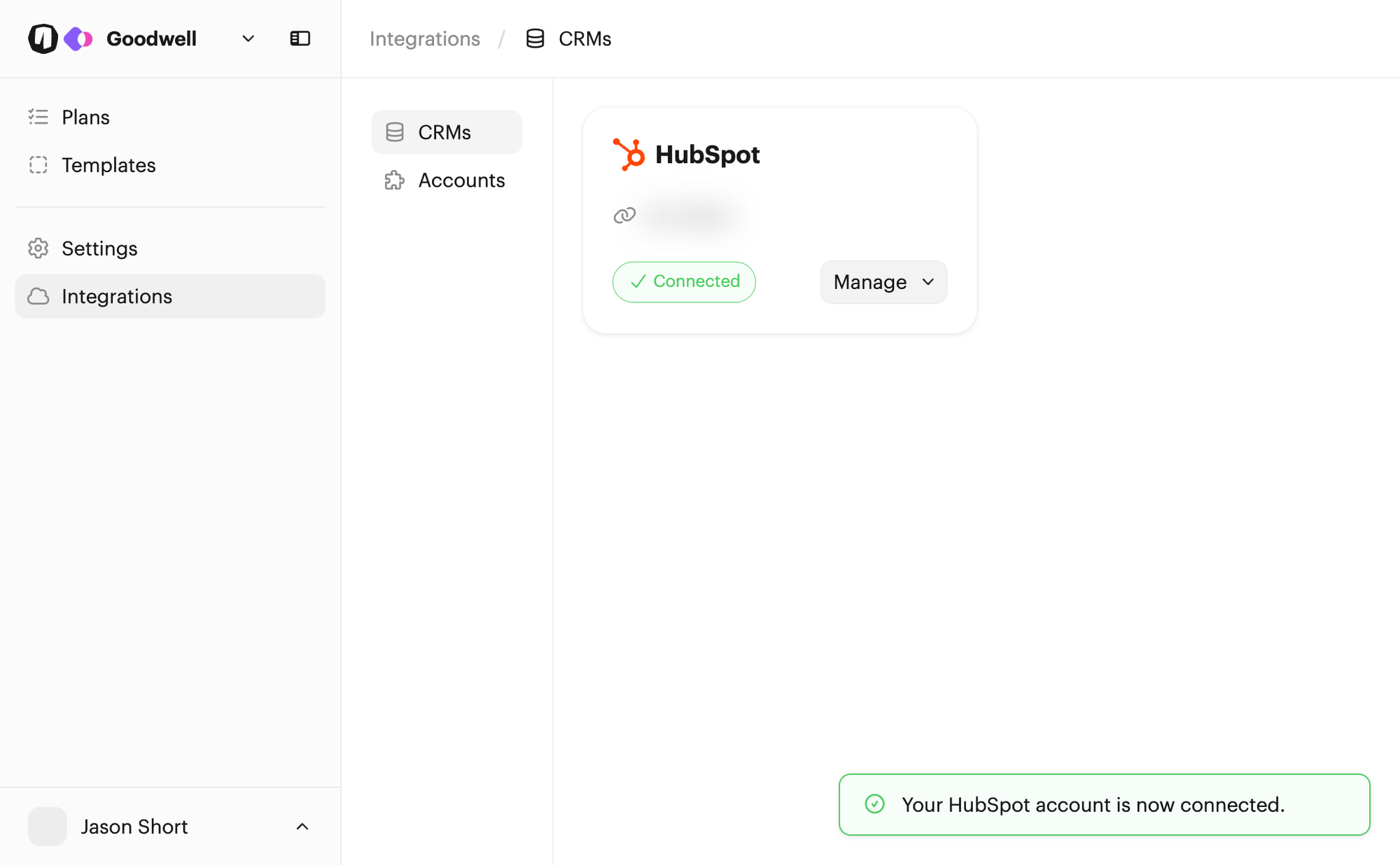
Now you're connected there's a few more things to consider.
Using the app card
After you've connected HubSpot, you'll have a new App Card type available to add to records. This card provides shortcuts for CRM users to create new plans linked to the CRM record being viewed, and to view lists of plans for the contact. Here's what it looks like:
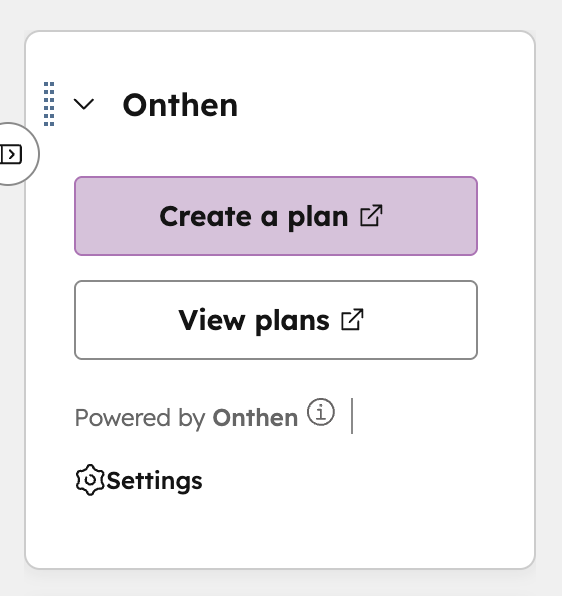
To manage the locations where your users will see this card, in HubSpot click the Marketplace icon on the top menu bar, then Connected Apps. You should see the Onthen app in the list:
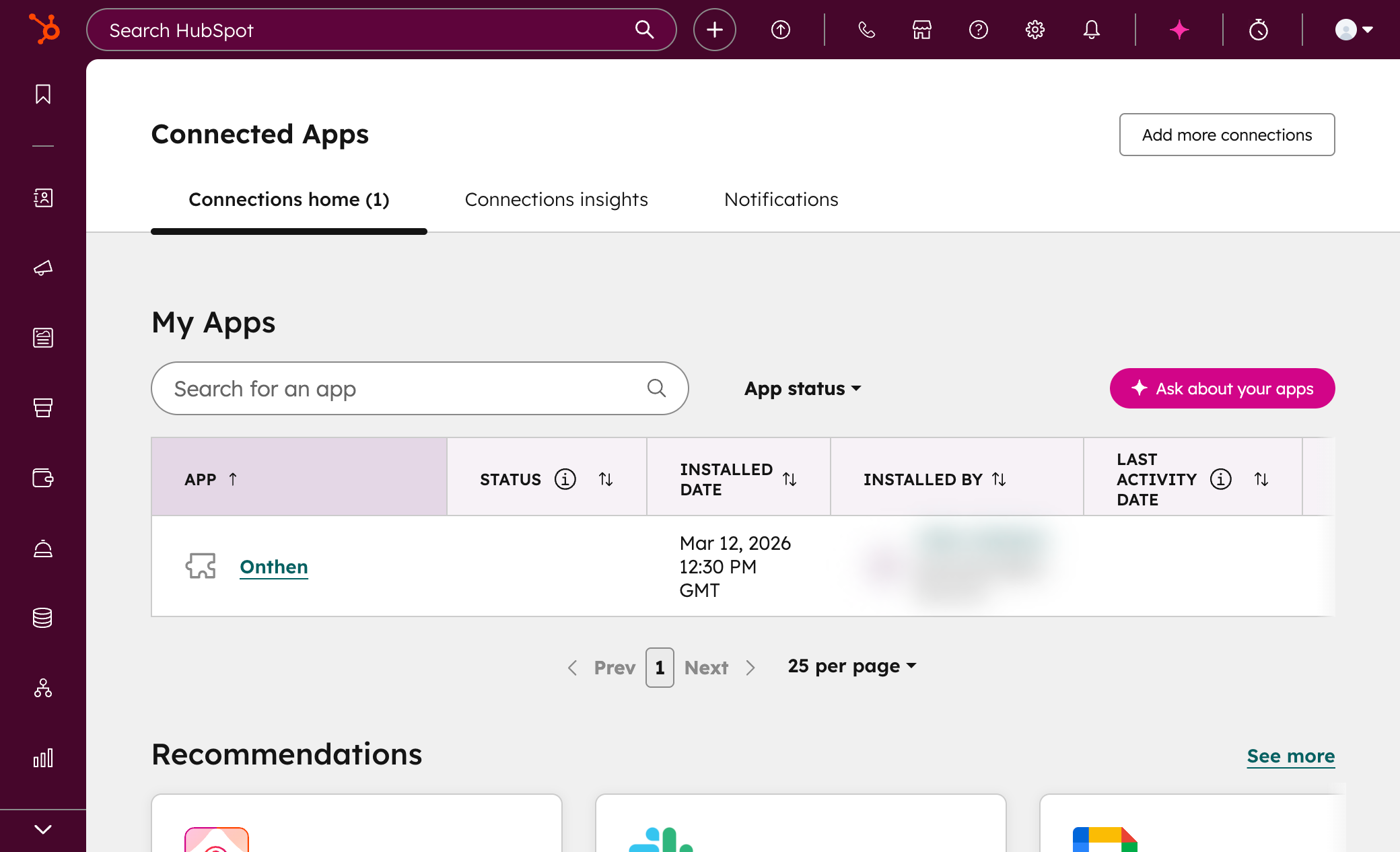
Click into the Onthen app and then select the App cards tab:
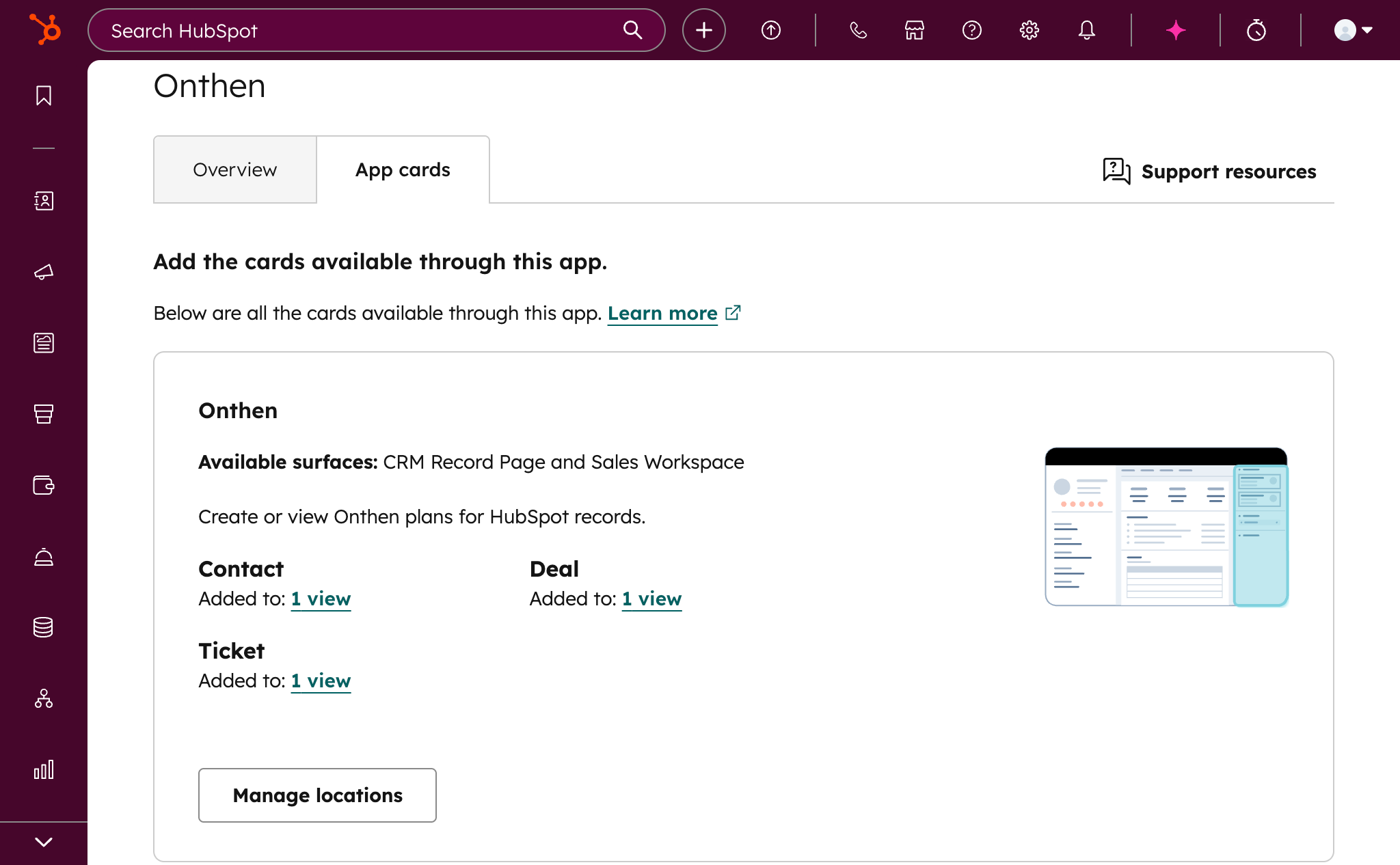
From here you can now manage the views that the app card is added to. Click Manage locations to add to other views. Add the app card to the object types you'll be working with through Onthen.
Template setup
You'll need to configure each template you want to integrate with HubSpot.
To do this, open the template, then click Template settings and select CRM. You'll see a page like this:
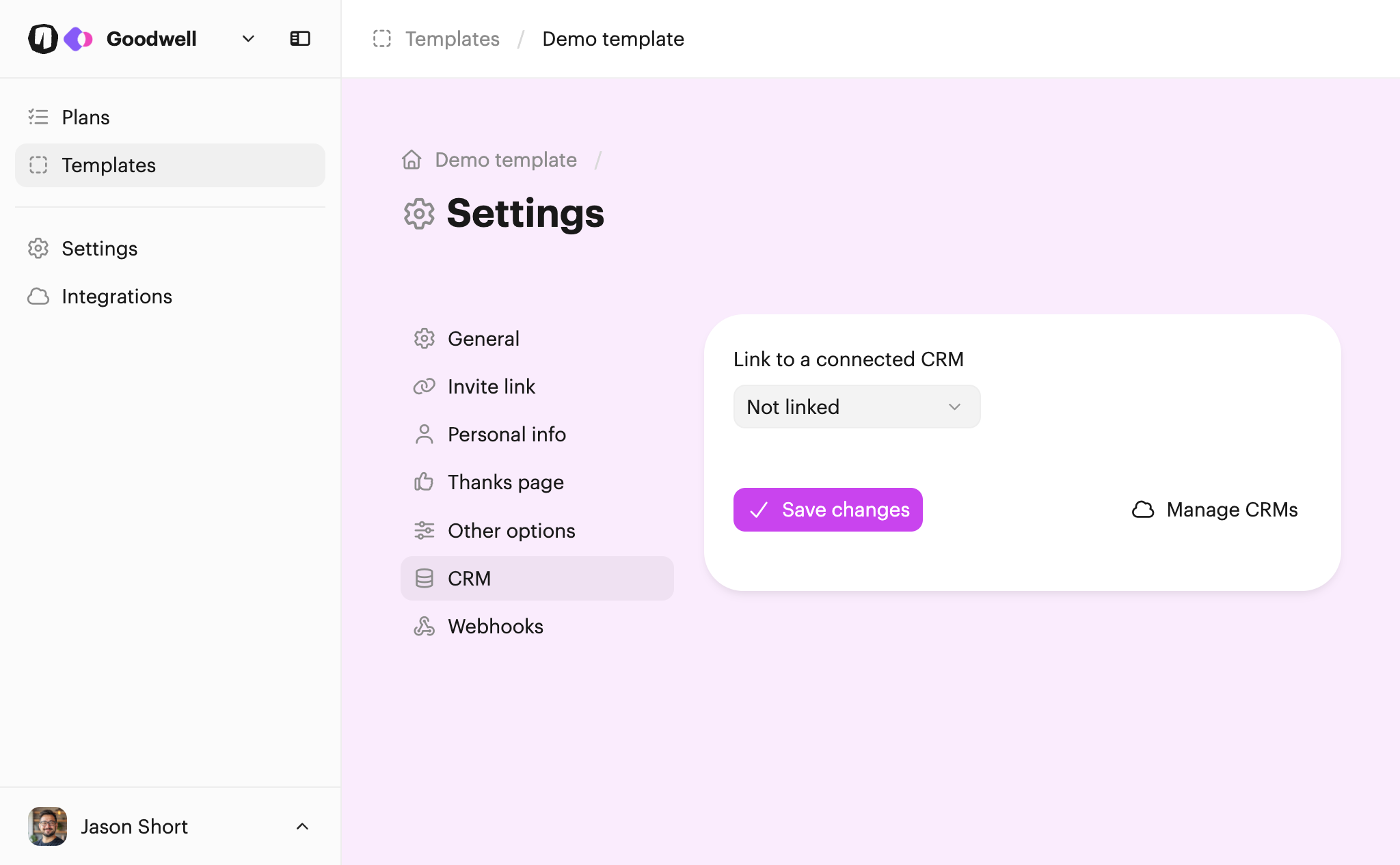
Select the CRM connection you just made and click Save changes. Now you'll be able to choose the object type you want to integrate with:
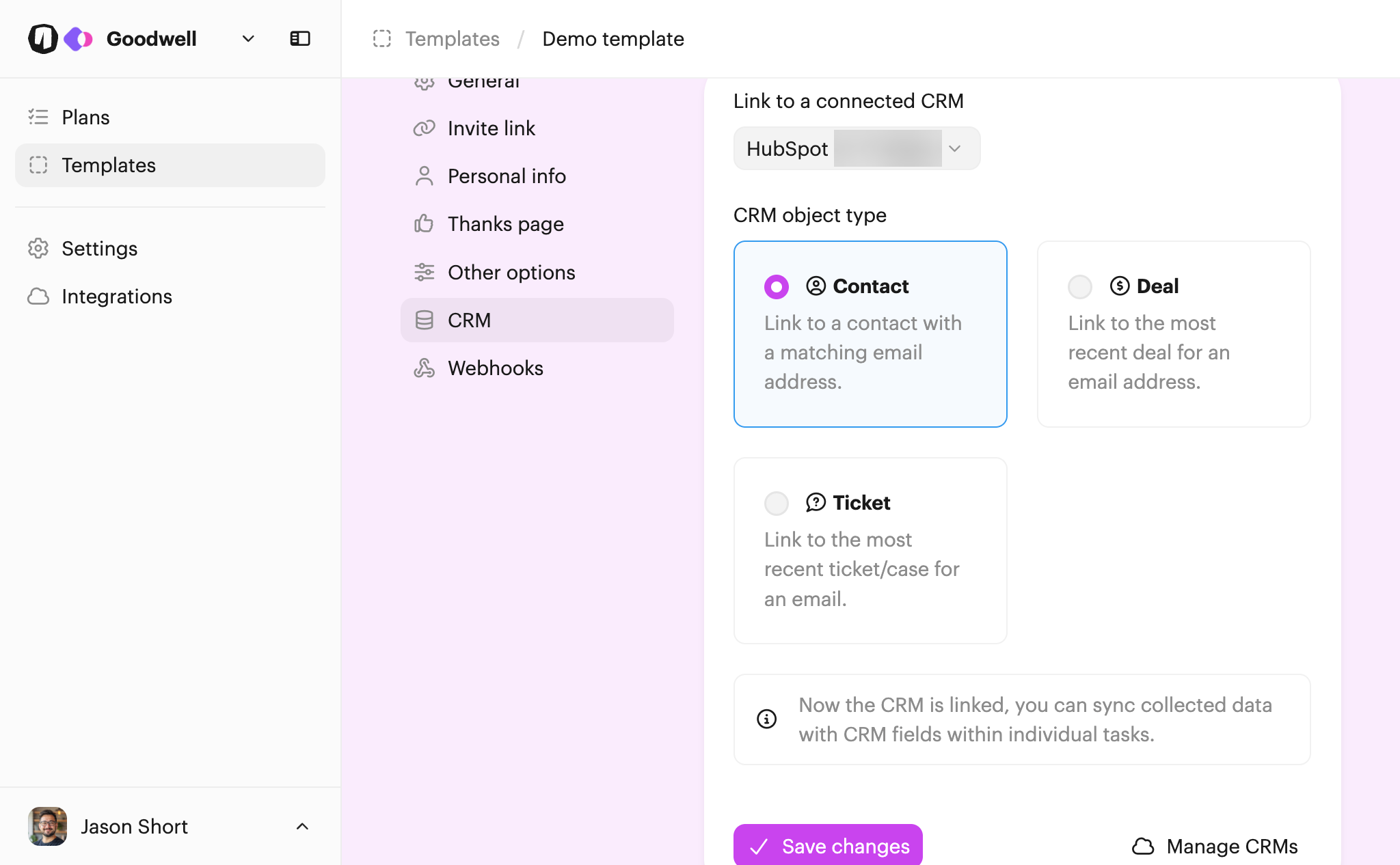
Finally click Save changes to confirm your selection and you're ready to go.
Matching CRM records to plans
Depending on how you create new plans, there are several options for how Onthen will match a record in the CRM to the plan.
Using the invite link
If a plan is created through the open plan invite link, Onthen will look for a contact matching the owner participant email address. If you chose the 'contact' object type in the template settings, that will be the record that's linked.
If you chose 'deal' or 'ticket' as the object type, Onthen will look for the most recent object of that type under the contact, and link to that.
Note: If no object is found, the plan will proceed as normal but won't be linked to the CRM.
Creating a plan manually
When you create a plan using Plans > Create plan, you'll see an option to Link to a connected CRM. If you leave this setting as is (use template settings), a CRM record will be matched using the same rules as described in the previous section for the invite link:
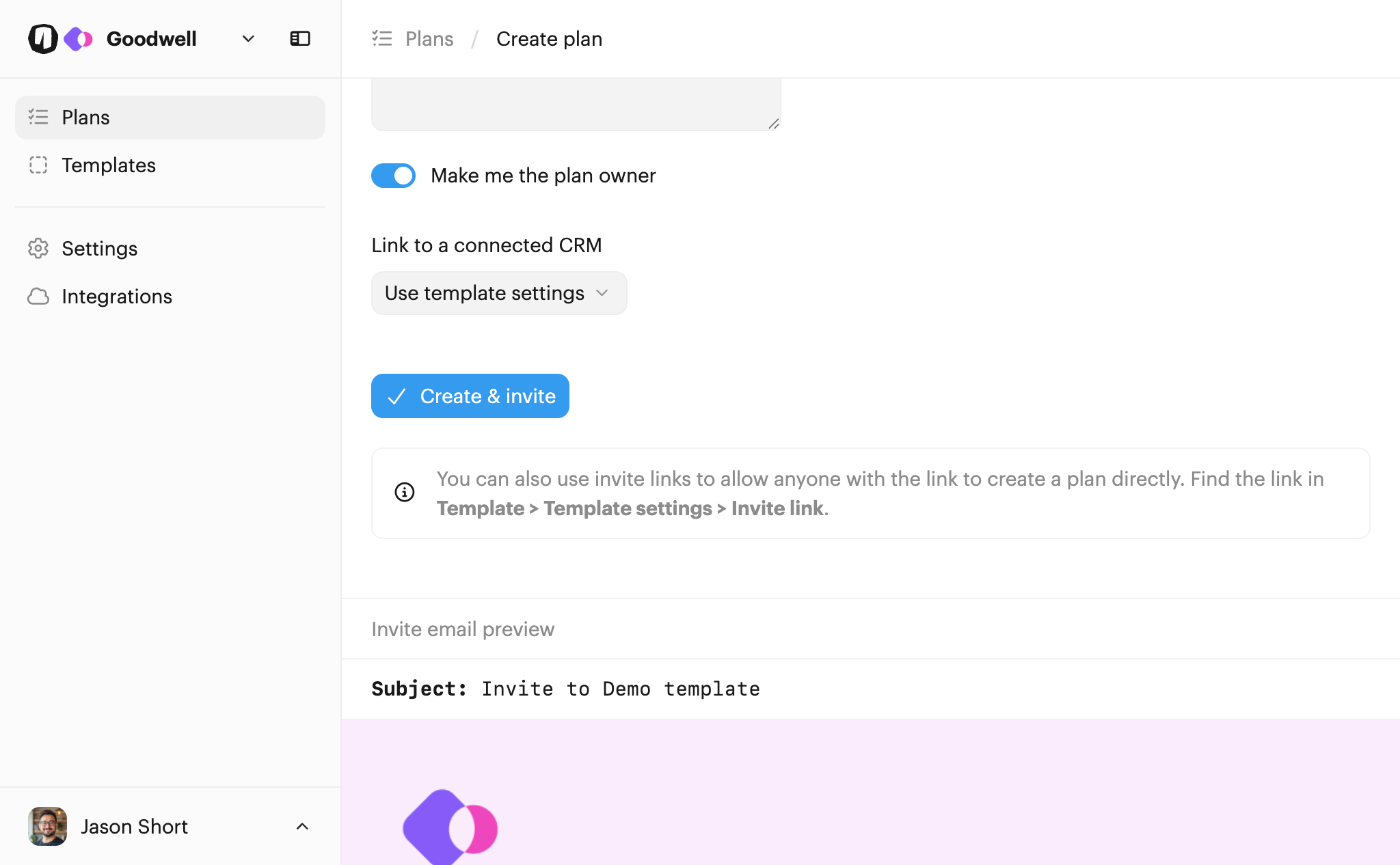
If you prefer, you can change this selection to manually select a CRM and enter a CRM object ID to match the plan to.
Using the app card
When you click the Create a plan link on the app card in HubSpot, it will open up the create plan page with the details of the current record (including email address) already populated, like this:
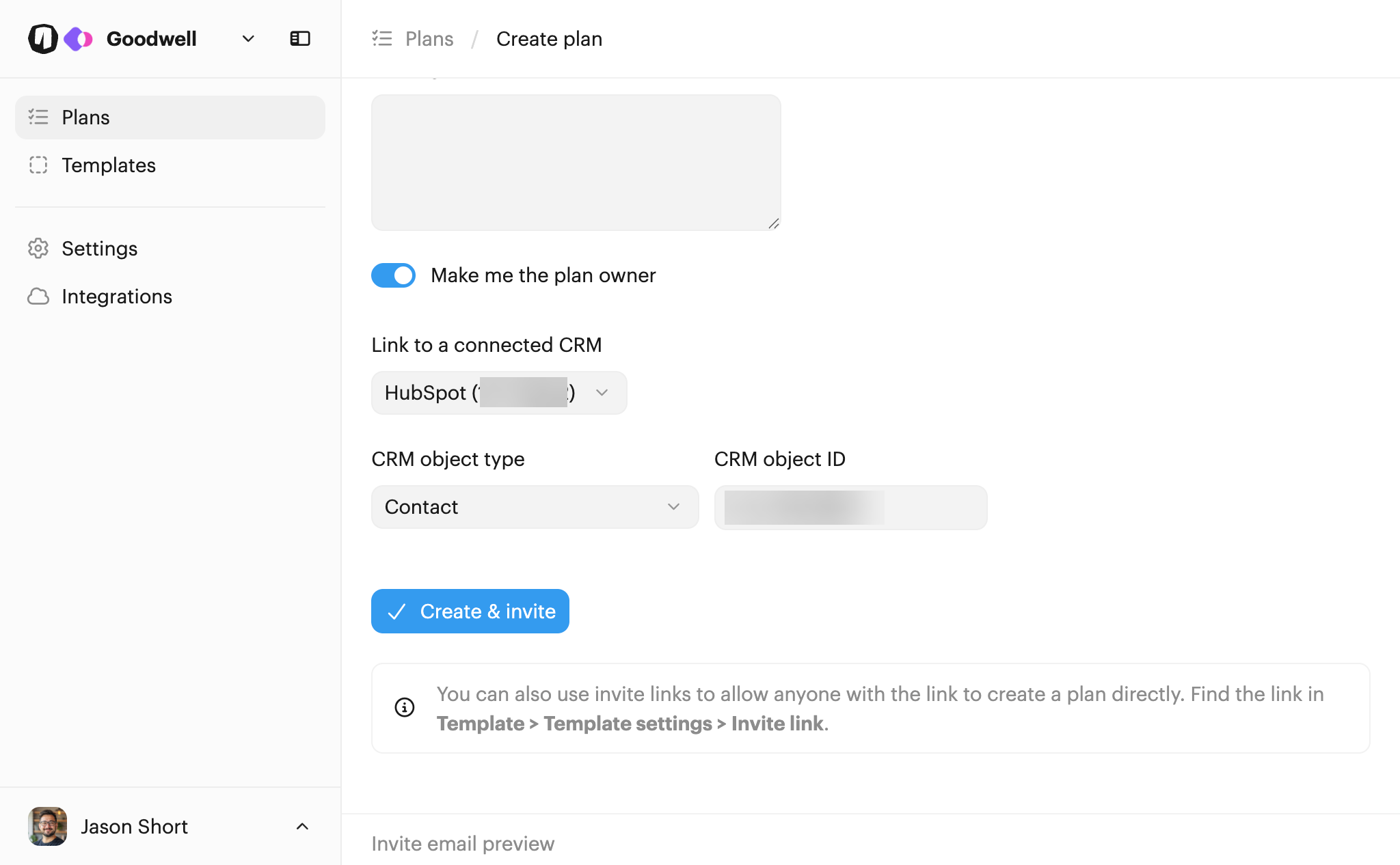
So all you need to do is select a template, add an invite message, and click Create & invite to ensure the plan is linked to the correct record.
Syncing form fields
Most of the integration features will now work as expected without any further setup. But if you need form fields to sync data with properties in HubSpot, you'll need to link each field to a matching property.
You'll find details of how to do this in the complete form task.
CRM settings in plans
If you need to check which CRM and record a plan is linked to, open the plan, click Manage plan > Plan settings, and select CRM.
You can change the record ID if you need to here. Be careful when doing this as it won't backfill activity to the new record, it will just sync future activity to the new record.