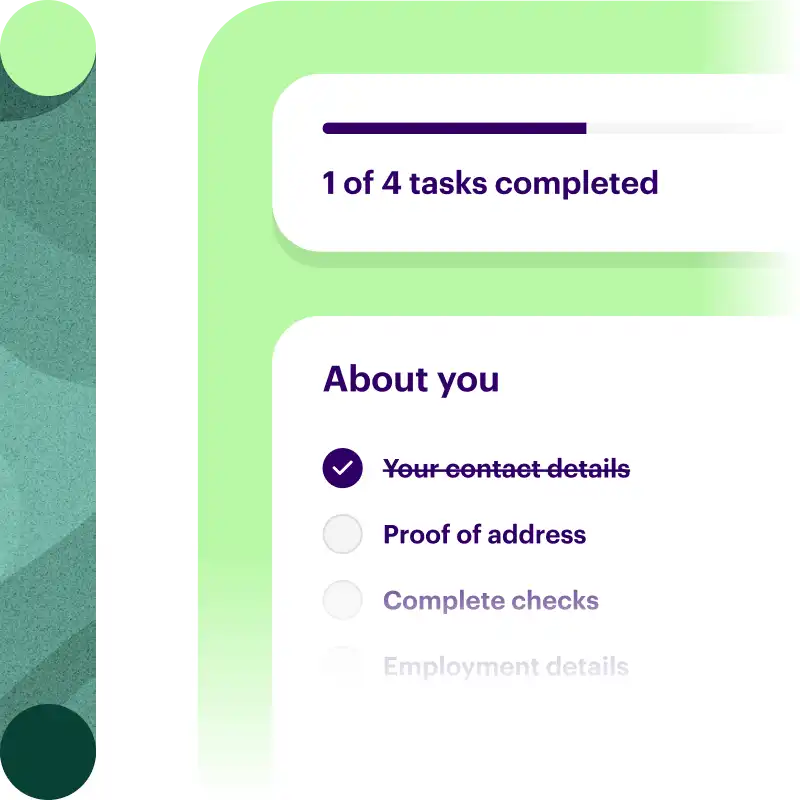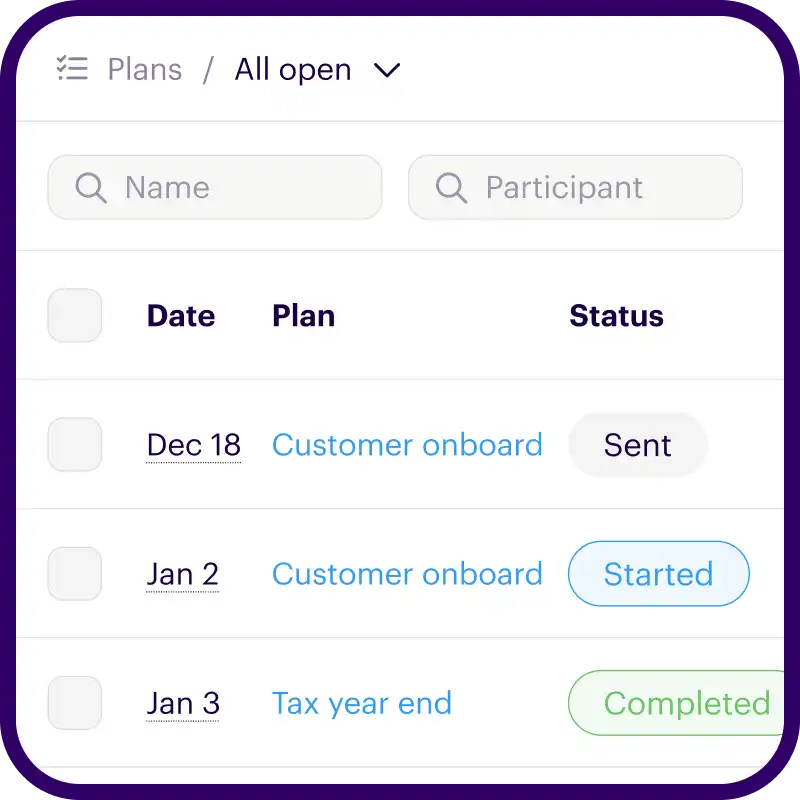

Onthen allows you to create onboarding 'plans' that you can send to customers, partners, prospects, or anyone else (we call them 'participants'). Each plan has a set of tasks that a participant needs to complete.
The Schedule meeting with HubSpot task allows you to ask the participant to select a date/time and book a meeting in a calendar through the HubSpot meeting scheduler.
Note: We also have a full CRM integration for HubSpot.
How it works
This task requires participants to book any available meeting slot before they can complete the task.
When the participant opens the task, your HubSpot scheduler widget loads up within the main task canvas and looks like an integral part of your plan. The participant will follow the instructions on screen to select a suitable meeting time, then enter their details to confirm the booking. Once complete, they'll be able to continue on to the next task.
Note: Since this task doesn't communicate directly with your HubSpot account (everything works through the browser), there's no need to connect a HubSpot account.
Copying your meeting link
Head over to HubSpot, and choose Sales > Meetings Scheduler from the menu. You'll see a page like this:
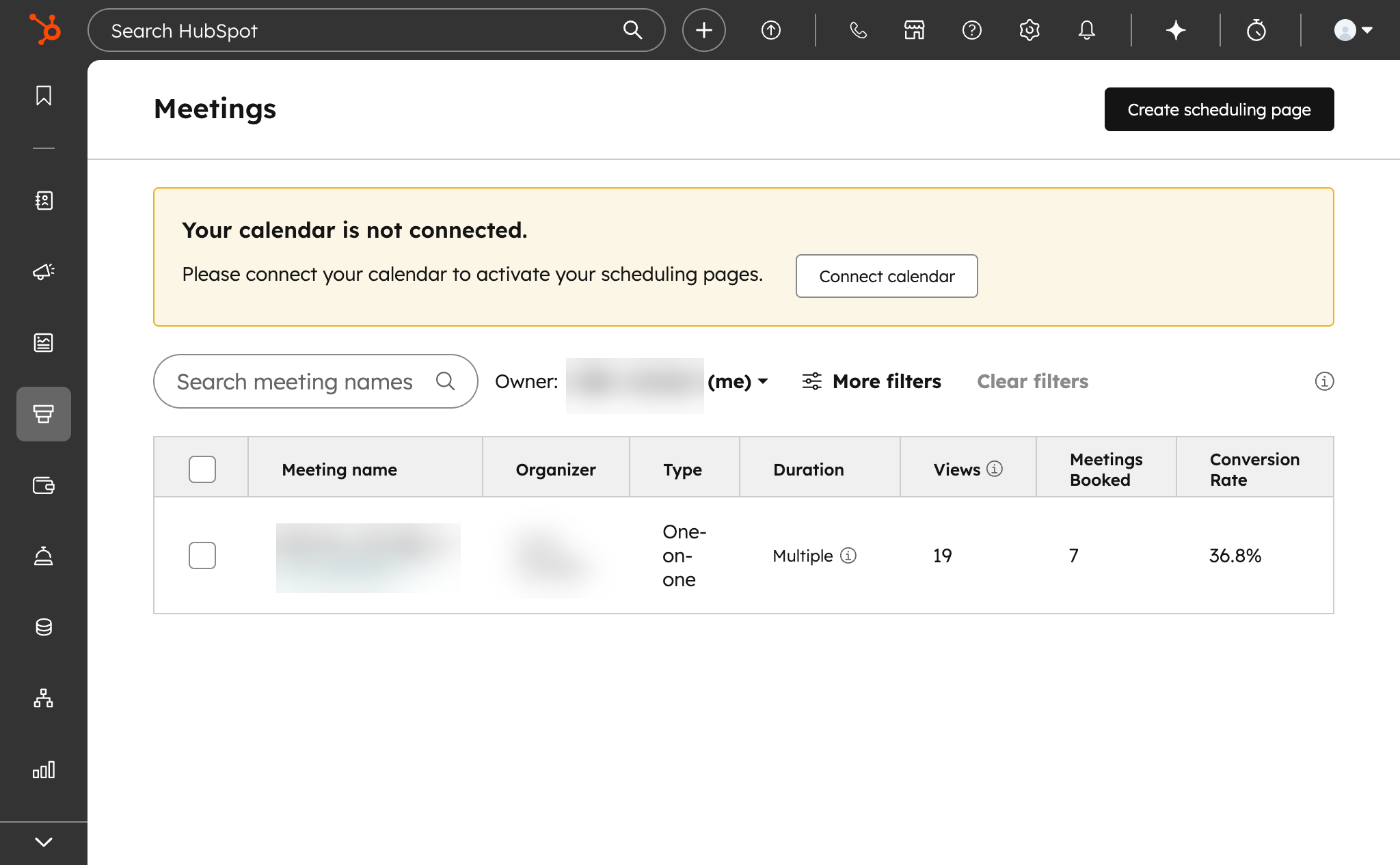
If there's no meeting already, click Create scheduling page to create one.
Hover over the meeting you want to use with Onthen, then click Copy link. You'll need the link you copied in the next step.
Note: We don't support scheduler links on custom domains. Please use the HubSpot link.
Add the task action
Head back over to Onthen and open the Onthen template you want to add a meeting scheduling step into.
In the section you want to add the task, click Add task. Select HubSpot / Schedule meeting as the task type. Add a description, due date, etc. if you need. Click Add task to create the new task.
When the task is saved, click on its name to configure it. You'll see a page like this:
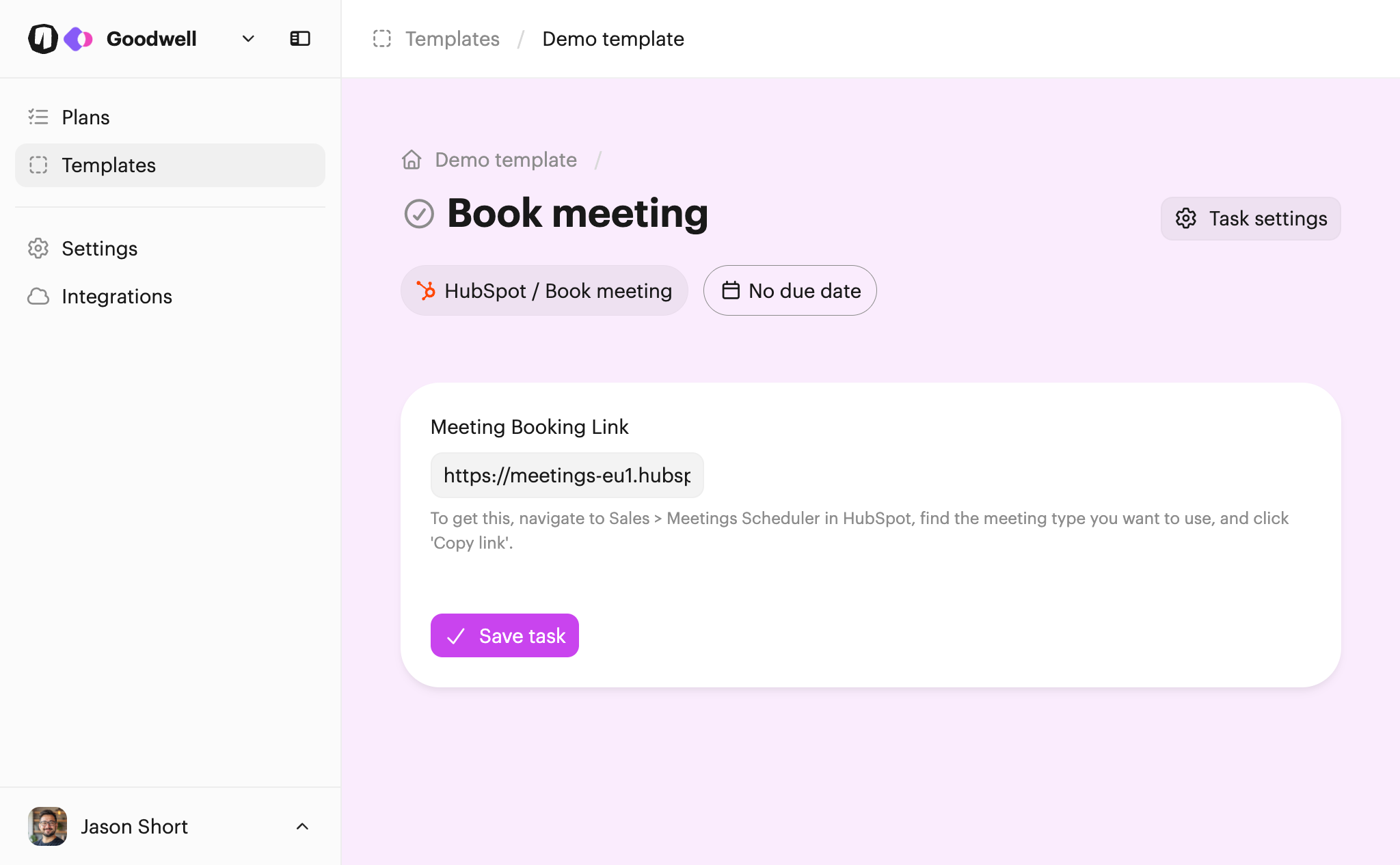
Paste in the booking link you copied earlier. Finally click Save task.
Using the task action
You can test the action by creating a new plan.
The quickest way to test this task action is to go to the list of plans after you've created the new plan, and click its name to open it as the user.
Once you're in the plan and click into the new task you'll see the form:
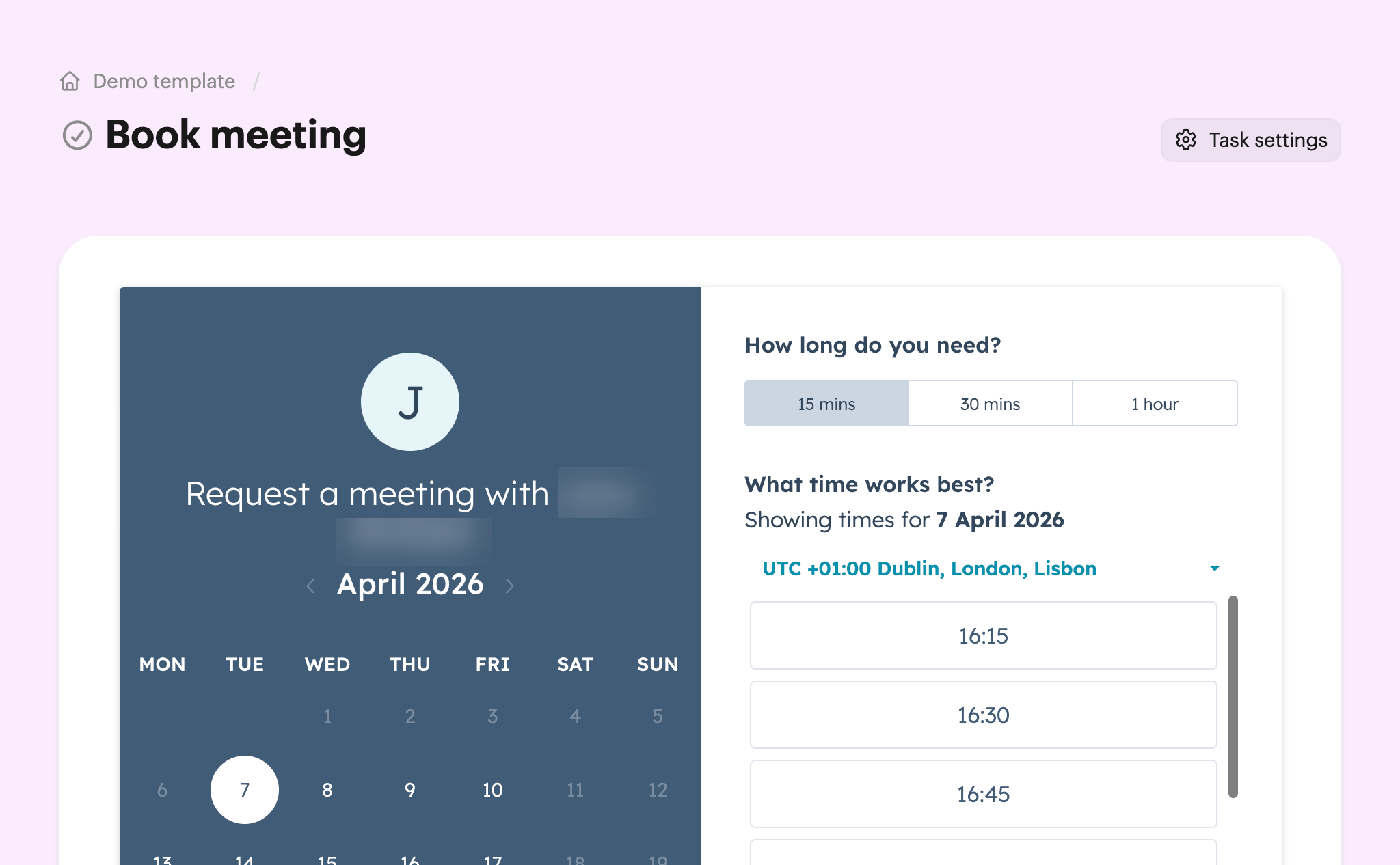
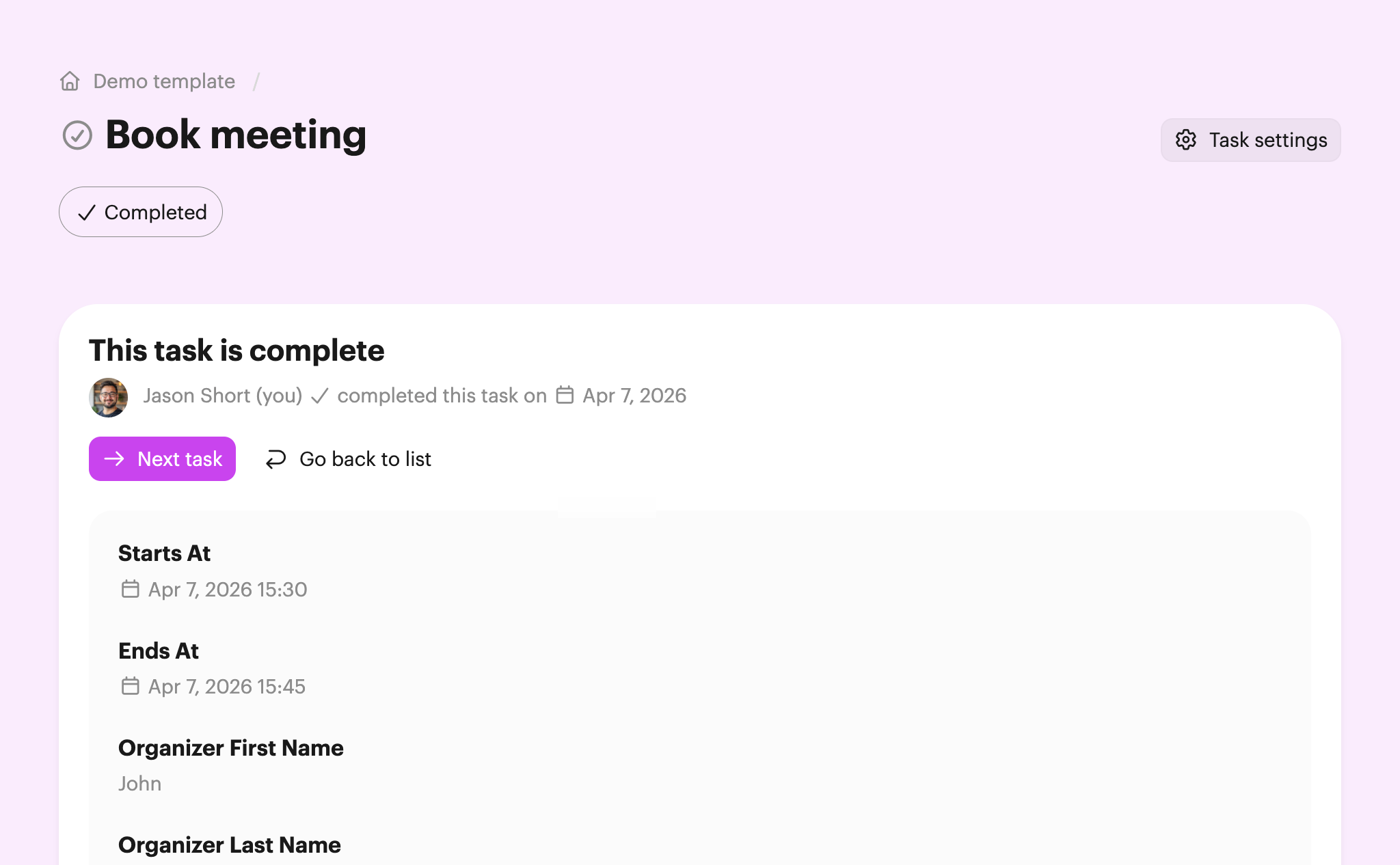
Follow the steps to book the meeting in the HubSpot scheduler widget, and after the meeting is booked you'll see that the task is complete:
Checking the result
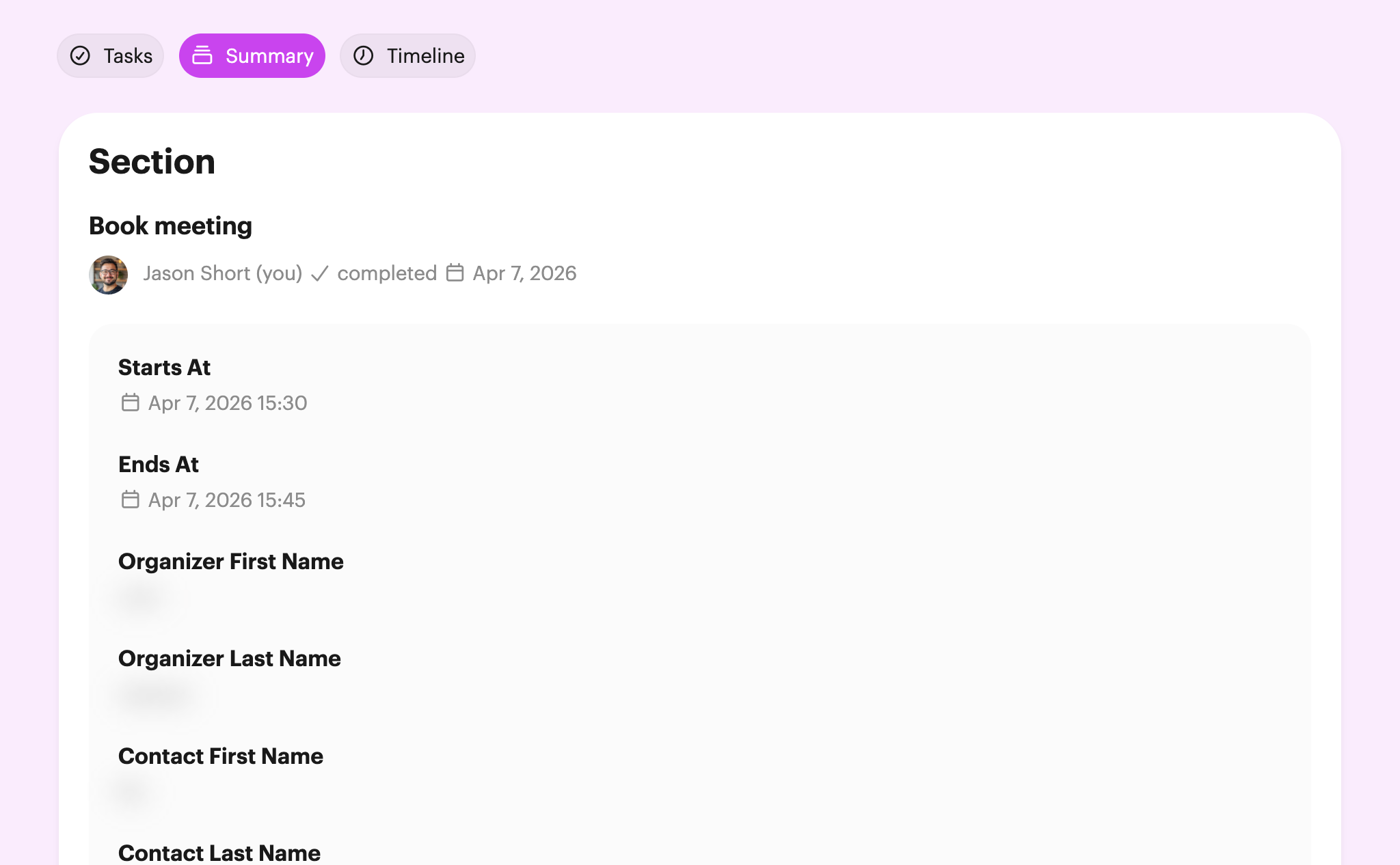
You'll now be able to click on the Summary tab or click into the task and see the details of the booked meeting. It looks something like this:
Frequently asked questions
Can the widget be customized?
The branding shown on the scheduler widget is controlled by your HubSpot brand settings. Follow HubSpot's guide to editing your brand to make changes.