
Onthen allows you to create simple, branded one-page deal rooms to help you collaborate with customers, partners, prospects, or anyone else. You can add tasks, blocks (interactive content or resources), and can get detailed analytics to understand how your deal or onboarding is running.
What does it do?
The Verify ID with Sumsub block allows you to verify any page visitor. Sumsub offers a flexible set of 'verification levels', including ID documents, liveness, phone, and address.
How it works
This block allows you to connect your Sumsub account and then require participants to pass through a customizable set of verification steps.
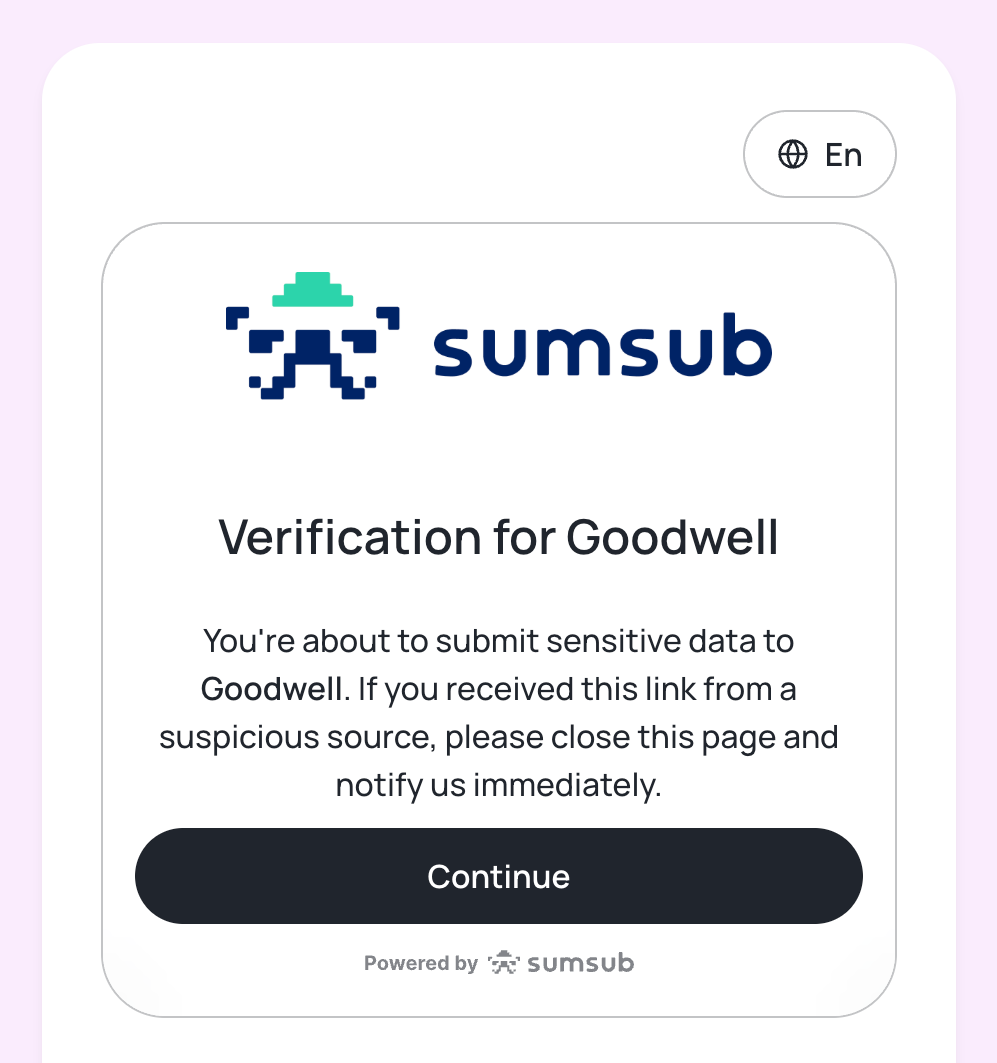
The block opens up with the Sumsub widget ready to start a verification. The page visitor will follow the instructions on screen and go through one or more steps to verify their identity, all without leaving the page.
Connecting Sumsub
Follow these steps to connect your Sumsub account first. First, you'll need to create an app token for Sumsub.
Login to Sumsub, and then click on Dev space on the menu. Now click App tokens, and select Generate app token. You'll see a page where you can set up the token:
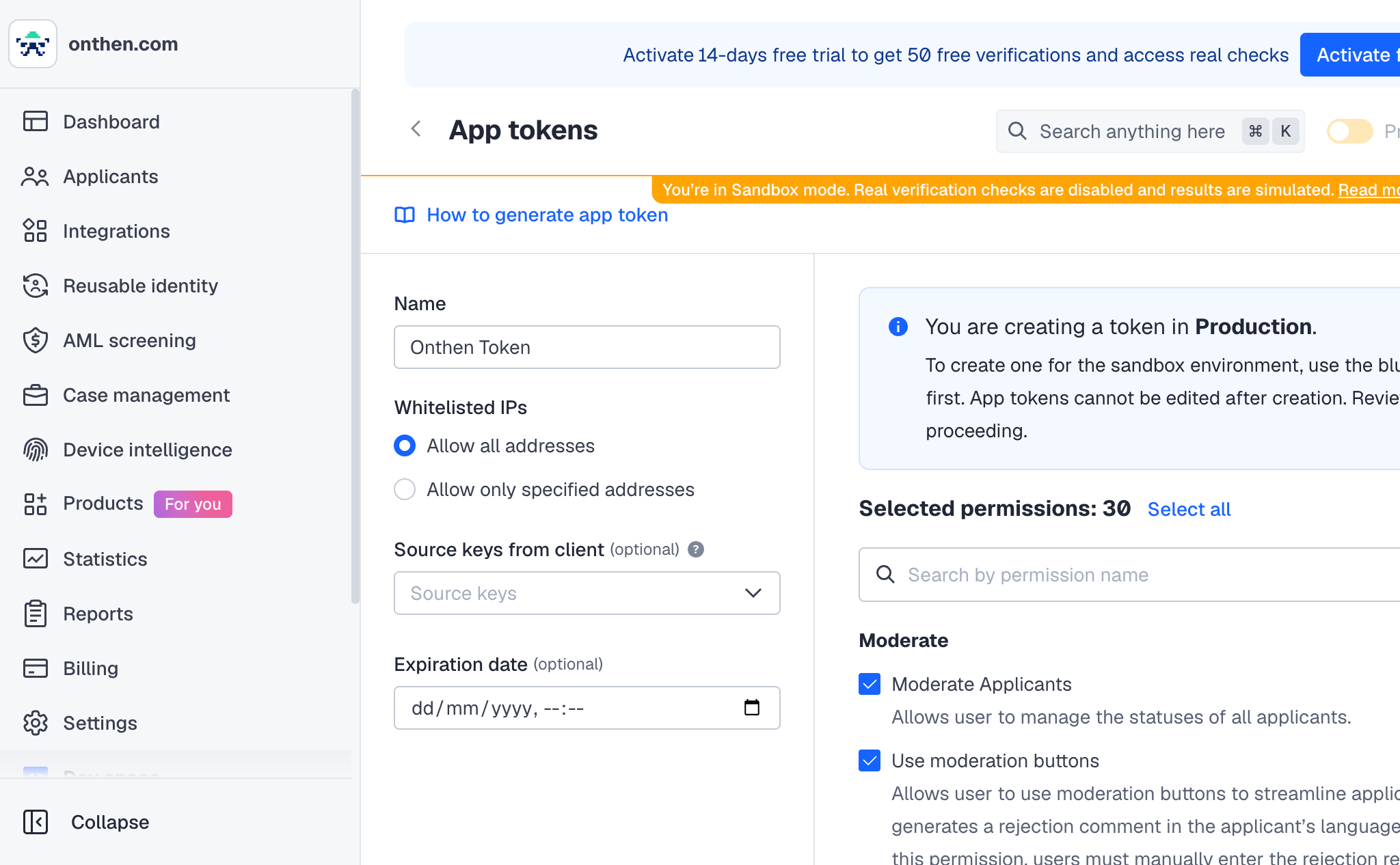
For now, you'll create a sandbox app token. This will allow you to test everything before using your real/production Sumsub account (see the 'Going live' section later).
Give it a name, such as Onthen Token. You can leave all of the permissions selected, or (recommended) remove any permissions that are not related to creating and managing applicants.
Click the Generate app token button (top right of page) and you'll then see the app token and secret key that you'll need to copy into Onthen in a few moments.
Back in Onthen, click Integrations > Accounts > Connect. You'll see a list of accounts that Onthen integrates with:
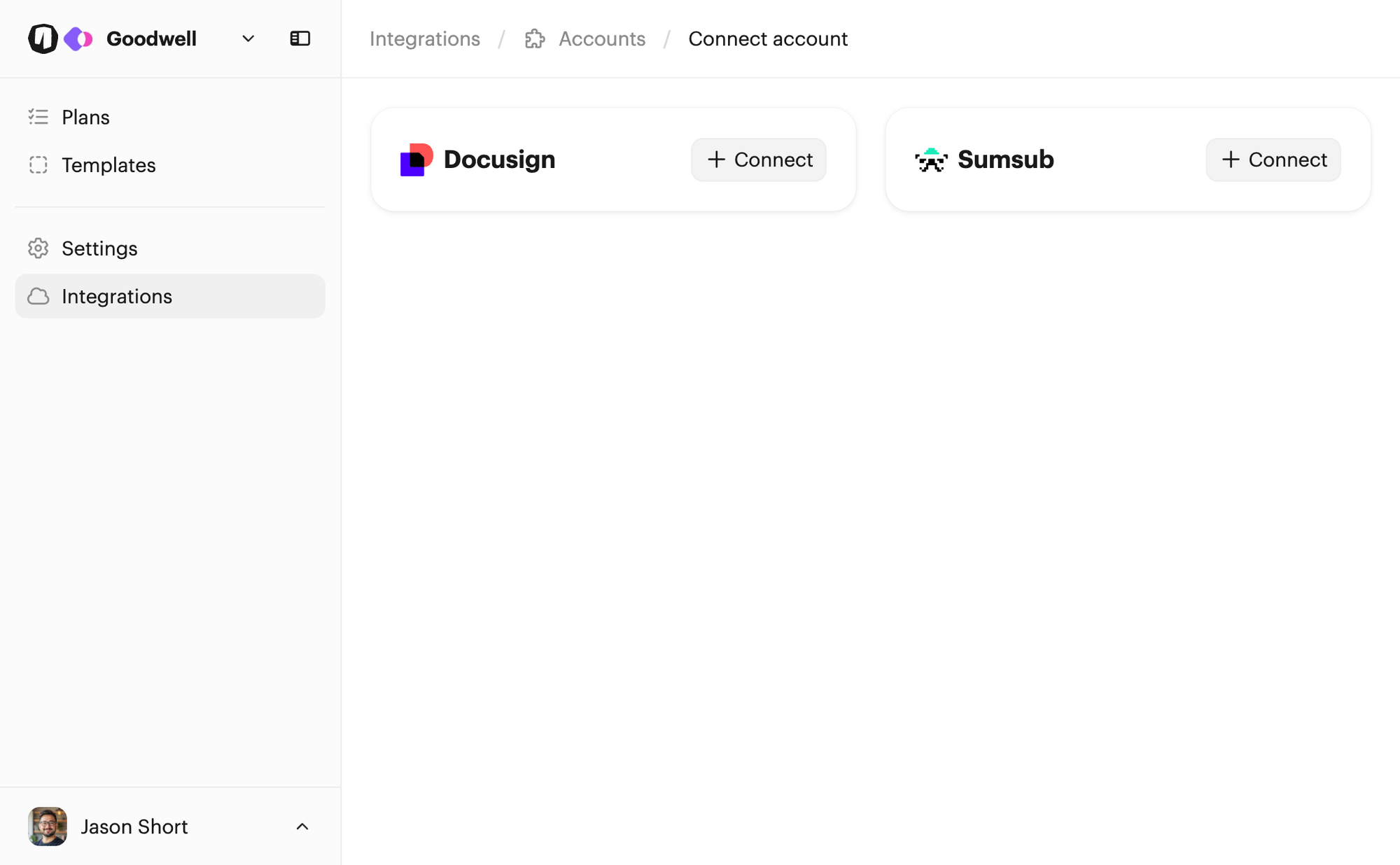
Find the Sumsub panel and click Connect. This takes you to a page where you can paste in the credentials:
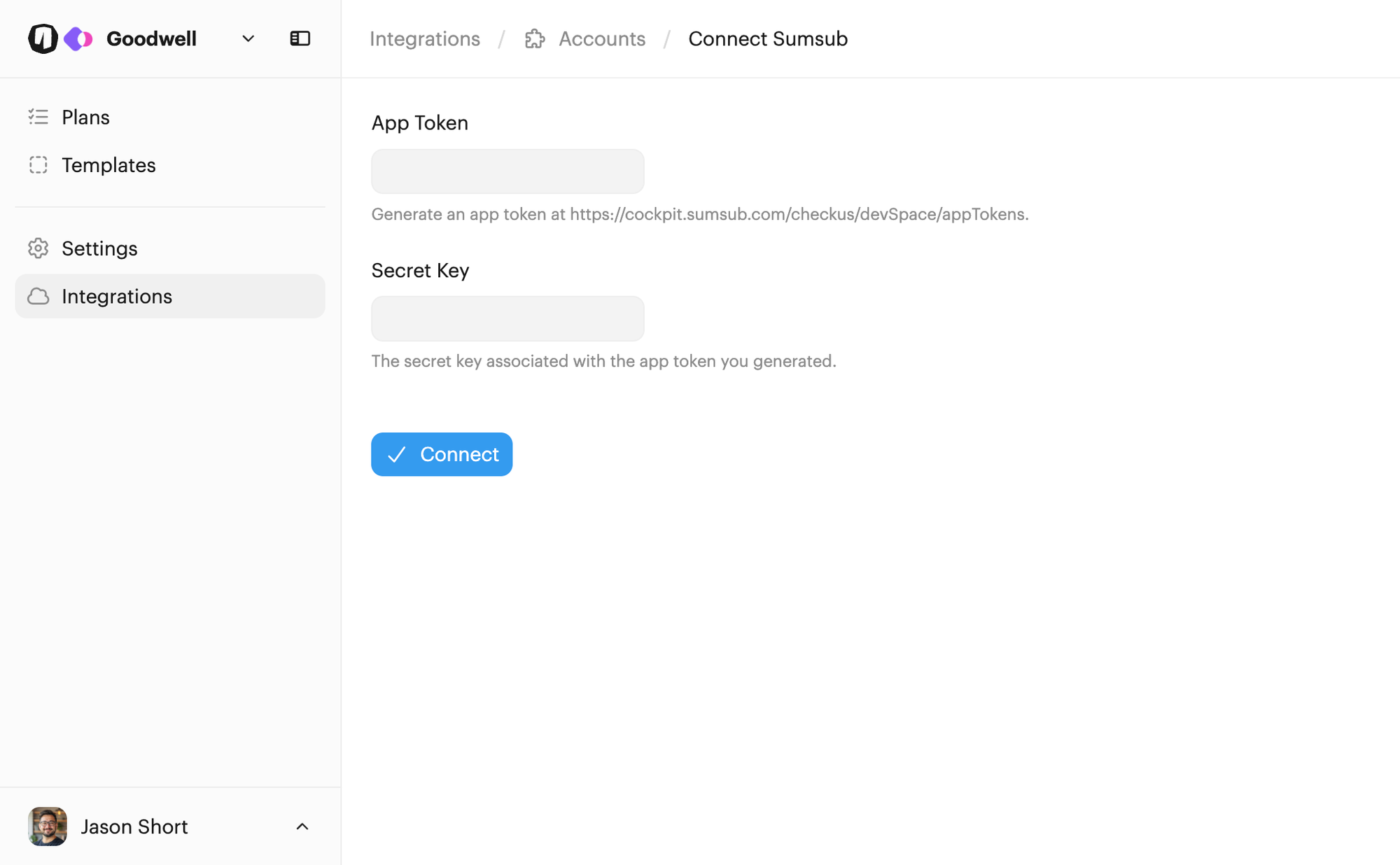
Once you've pasted in the app token and secret key, click Connect. The account is now setup and ready to use.
Choose a verification level
Sumsub uses a concept of verification levels to determine what steps the participant will go through.
To manage the verification levels available under your account, in the Sumsub dashboard click on Integrations > Verification levels > Individuals.
There are some default levels that you can use immediately, or you can create a custom level if you prefer. In this guide, we'll select the id-and-liveness check. Make a note of the name of the level you want to use.
Note: This block is only suitable for verifying individuals. Make sure you choose a 'standard' verification level and not 'applicant actions'.
Add the block
In Onthen, open the page you want to add the block into. You can add a block into any tab or within a task.
Wherever you want to add the block, click + Add block, select category Identity, and then click the Sumsub / Verify ID block.
You'll now need to select the Sumsub account you connected earlier, and then click Continue.
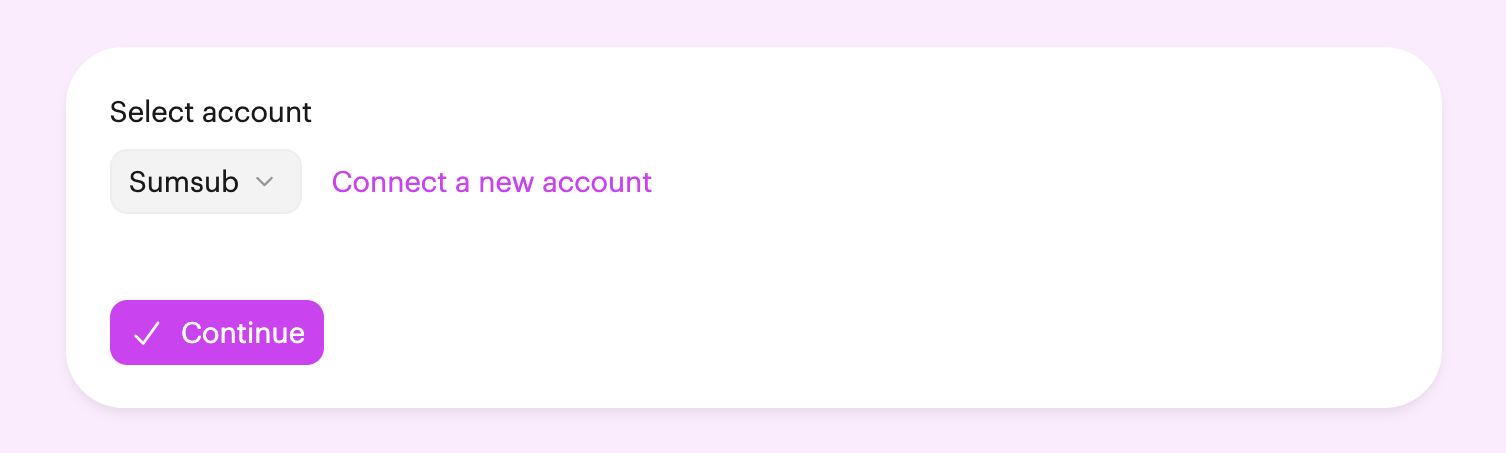
Your block will be added and the settings will open up so you can configure it.
Configure the block
The settings available for this block type are:
- Name - this shows on the page above the block. Use it to describe the content.
- Description (click + Add description to edit this) - add a description if you need to provide extra context. It will show up under the name.
- Verification level - provide the verification level you noted in the previous steps (i.e. id-and-liveness). This is the verification level setup in Sumsub.
Click Save settings, this will apply the changes and update the block.
Going live
So far you've been using a sandbox app token just for testing. Before you can verify real participants, you'll need to ask Sumsub to allow you to go live. Contact them and they can approve this for you.
Once you're approved, create a production app token, and then visit Integrations > Accounts, find your Sumsub connection, choose Reconnect, and enter the new credentials.
Block analytics
The analytics available for this type of block are:
- View - when the block is expanded. You can also listen for the BLOCK_VIEW event through a webhook.
Frequently asked questions
Can I verify businesses with Sumsub?
We currently support verifications for individuals that are supported by the Sumsub WebSDK. We may add a business verification block later. Let us know if you'd be interested in using this.
How do I customize the branding?
Sumsub allows you to customize the branding on emails and the verification steps. You can do this in Settings > Branding within your Sumsub account.