Using webhooks

by
John Jackson



Webhooks can send events around plans to a remote server via HTTP POST requests. You can use these events to trigger other automated actions around your plans.
You can also send these events to an integration platform such as Make.com or Zapier.
You can configure webhooks by opening a template, and clicking Template settings on the main template page. Then select Webhooks. You'll see a page like this:
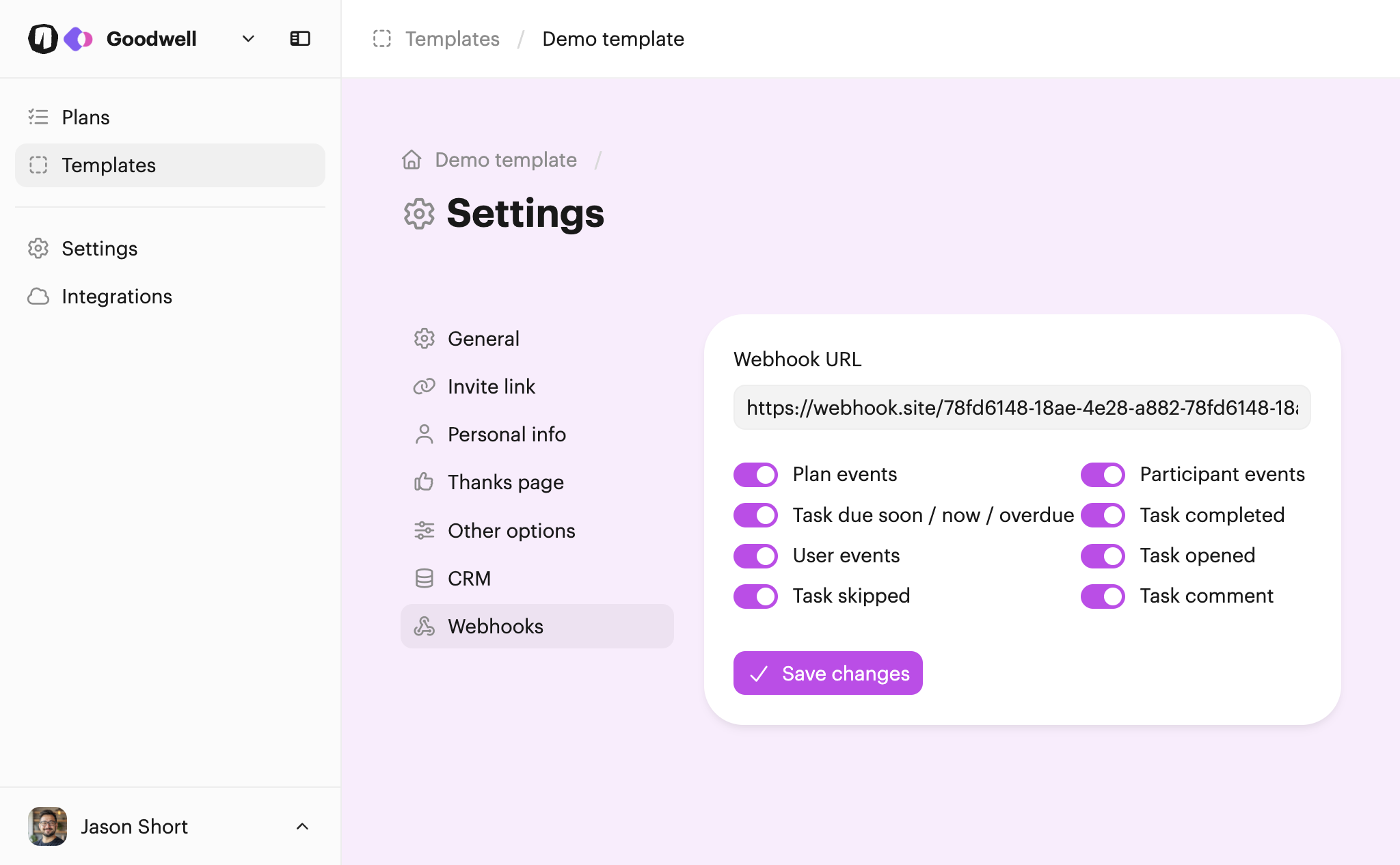
Provide the URL you want to post events to, and select the events you want to be notified of. Click Save changes when you're done.
Note: As with all of the settings in templates, changes here will apply to future plans. I.e. the settings will be used when new plans are created, but this won't enable webhooks for all plans already created from this template.
When you create a plan from a template with webhooks set, we'll copy over the webhook configuration into the plan. The template is exactly that, just a template for the webhook settings you want to use. The settings on plans determine how live webhooks work.
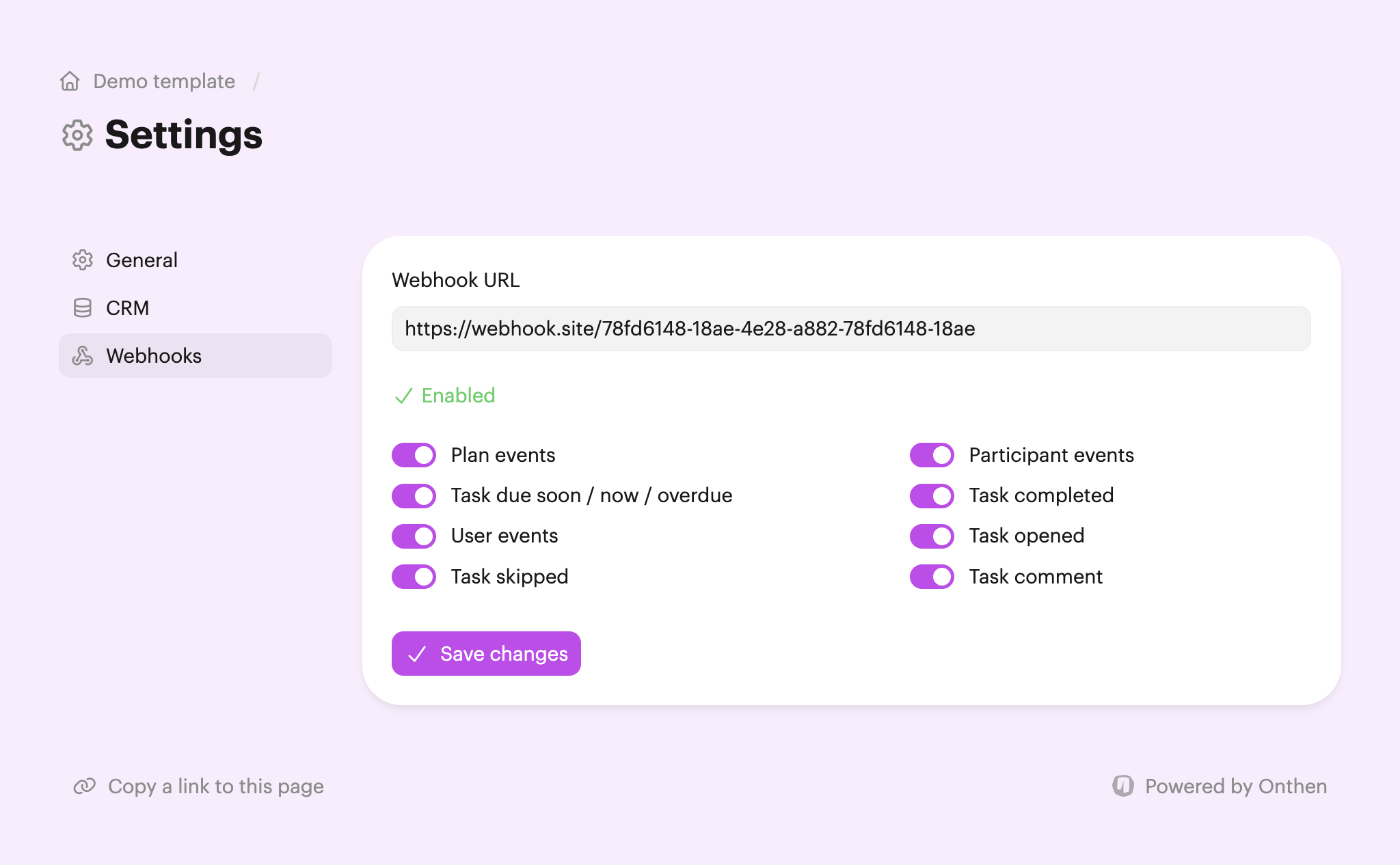
To check a plan's webhook status, first open the plan you want to check. Then click Manage plan, and then Plan settings. Now select the Webhooks tab.
You'll see a page like this if all is well and you have a webhook set:
If there are problems with the webhook, you'll see a status message:
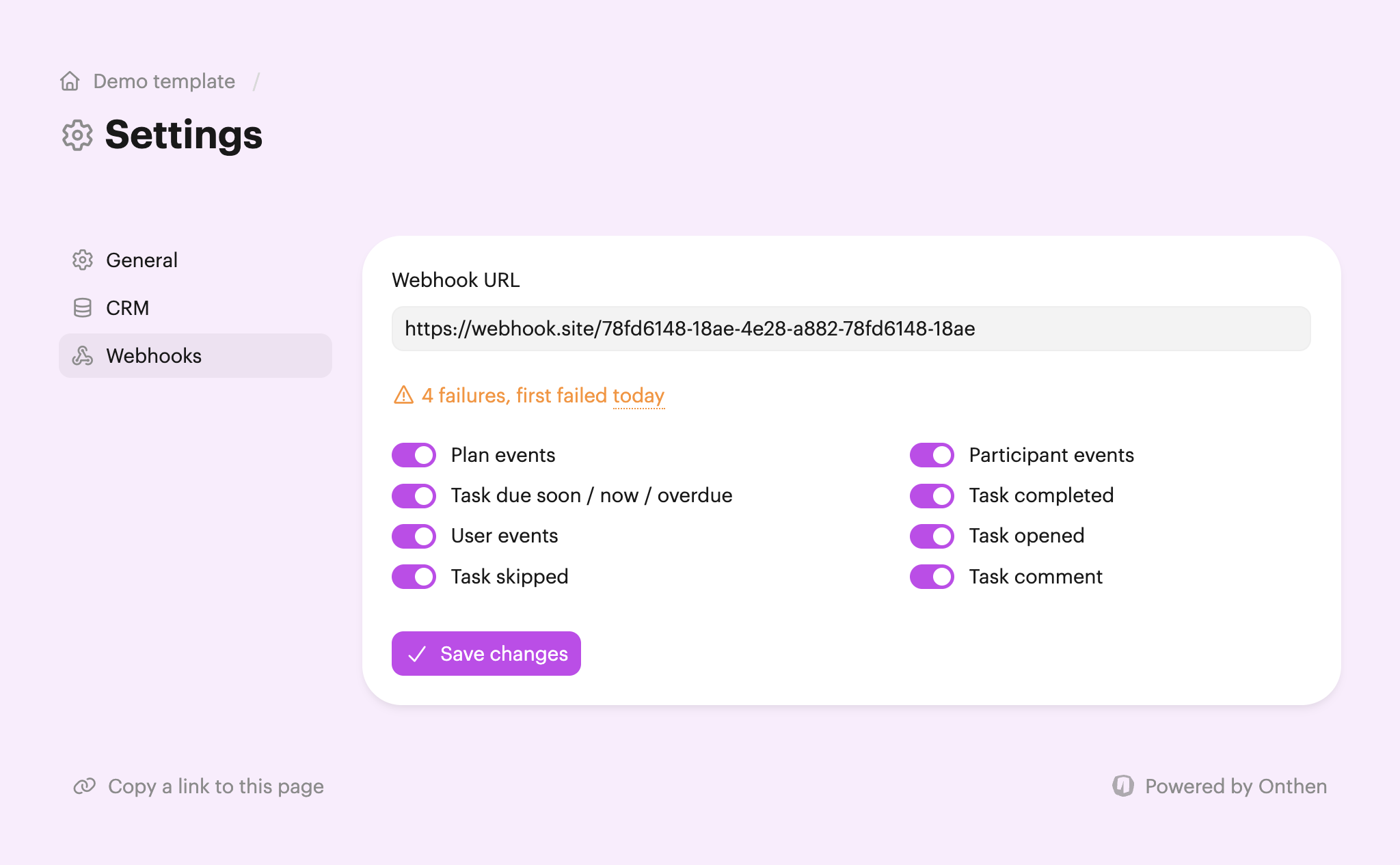
Note: If you want, you can add webhooks directly to individual plans on the above page too. Likewise, you can remove a webhook (just remove the URL and Save changes).
We'll send a JSON payload. The exact schema depends on the webhook type, but this is an example of a status change webhook:
{
  "webhook_id": "iukDRTN62zPx22CtT29qmG",
  "webhook_created_at": "2026-03-14T12:05:12.387822",
  "webhook_event": "PLAN_STATUS",
  "webhook_acting_user_id": "5khUbeyaUBEfgYRnSaxZVn",
  "webhook_acting_user_name": "Jason Short",
  "webhook_acting_participant_id": null,
  "webhook_acting_participant_name": null,
  "plan_id": "Nwh4dxHwc44jRWVBKrF3UP",
  "plan_created_at": "2026-03-14T10:13:32.050610",
  "plan_progress": 100,
  "plan_status": "COMPLETED",
  "plan_due_at": null,
  "plan_name": "Demo template",
  "plan_description": null,
  "plan_rating": null,
  "plan_feedback": null
}
All webhook payloads have webhook prefixed properties including webhook_id (unique event ID) and webhook_event (webhook type).
The webhook event types are:
Your webhook endpoint should respond with a 2xx status code within 20-30 seconds so that we know it was delivered successfully.
Since webhook failures can be temporary, we'll retry failed webhooks and will continue to send events for a period of time. We'll also let you know by email if there are problems.
Eventually, we'll flag the webhook as failed. At this point, we won't send any further events for this plan. Again, we'll email to tell you this has happened.
To resume webhook events again, simply visit this page and click Save changes. This will reset the webhook state and enable events.