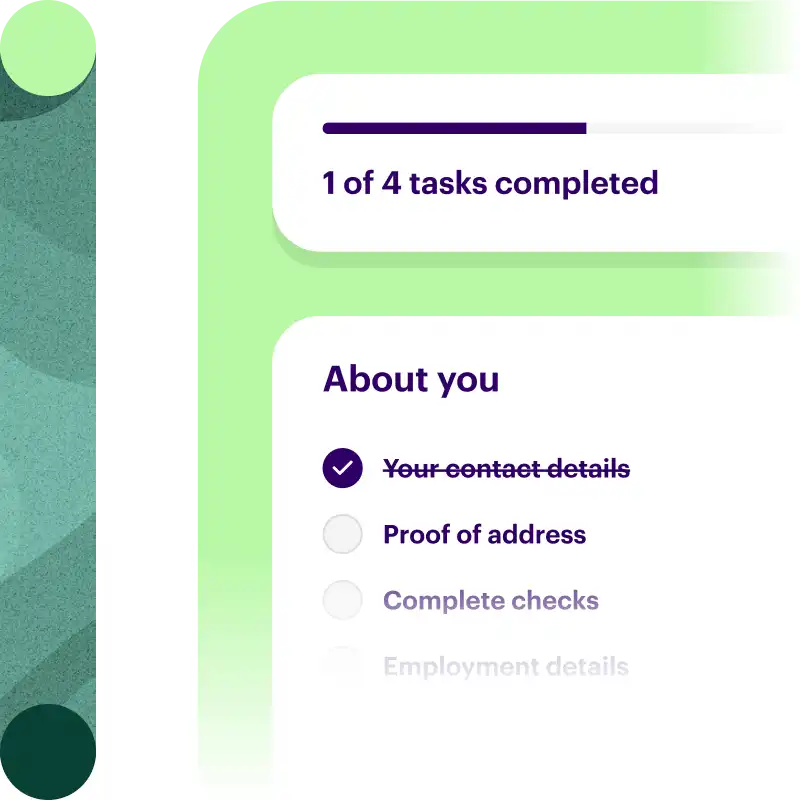
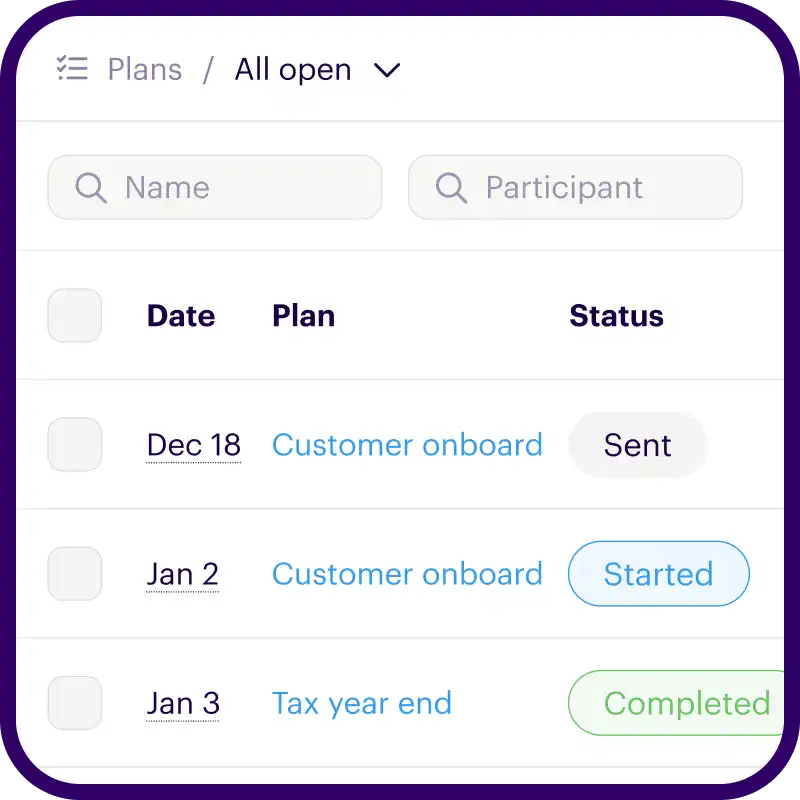
Onthen allows you to create simple, branded one-page deal rooms to help you collaborate with customers, partners, prospects, or anyone else. You can add tasks, blocks (interactive content or resources), and can get detailed analytics to understand how your deal or onboarding is running.
What does it do?
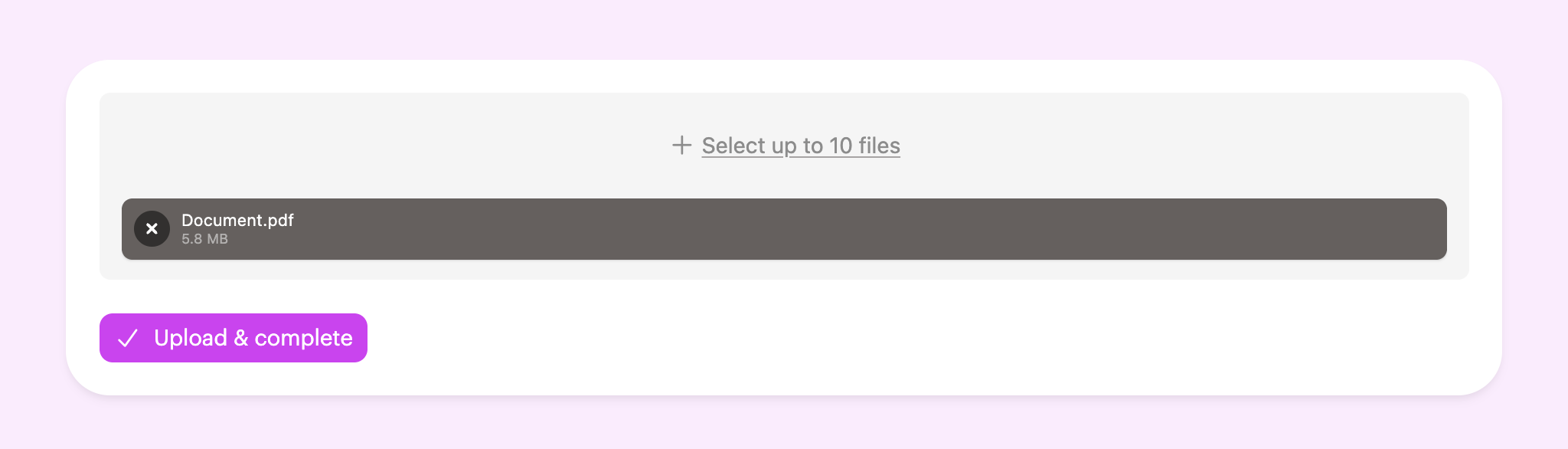
The Upload documents block guides your page visitors to browse, select and upload one or more files/documents.
Note: We also offer a Take photos block, which may be more suitable for your use case if you're expecting images to be uploaded.
How it works
This block is provided by Onthen and doesn't require any outside service. You can configure the minimum/maximum number documents you expect, along with the file types (file extensions) that you can accept.
Page visitors will be able to browse and select documents on their device. Once they're ready, they can upload the files.
If the page is connected to a CRM, we'll upload the documents to the linked CRM object too.
Add the block
In Onthen, open the page you want to add the block into. You can add a block into any tab or within a task.
Wherever you want to add the block, click + Add block, select category Upload, and then click the Upload documents block. Your block will be added and the settings will open up so you can configure it.
Configure the block
The settings available for this block type are:
- Name - this shows on the page above the block. Use it to describe the content.
- Description (click + Add description to edit this) - add a description if you need to provide extra context. It will show up under the name.
- Minimum documents - if you expect more than 1 file to be uploaded, you can set a higher minimum here. The block won't be able to be completed until the minimum number of files have been selected.
- Maximum documents - set a limit (up t0 10) for the number of files people can upload.
- Allowed file extensions - a list (comma separated) of allowed file extensions, or leave blank to accept any. For example, use '.pdf, .xls, .xlsx' to accept only PDF or Excel files. Popular document types are supported (please contact us if we're missing one you need).
Click Save settings, this will apply the changes and update the block.
Tip: To make sure exactly 1 file is uploaded, you can set both Minimum documents and Maximum documents to 1.
Block analytics
The analytics available for this type of block are:
- View - when the block is expanded. You can also listen for the BLOCK_VIEW event through a webhook.
- Completed - when files have been uploaded. You can also listen for the BLOCK_COMPLETE event through a webhook.
- Click - when someone downloads or opens a file (after they've been uploaded). You can also listen for the BLOCK_CLICK event through a webhook.
CRM integration
If this page is linked to a CRM object, then the files will be uploaded to the CRM record too. This is subject to the CRM integration supporting this feature, please check our documentation for the CRM. This feature is available on HubSpot.