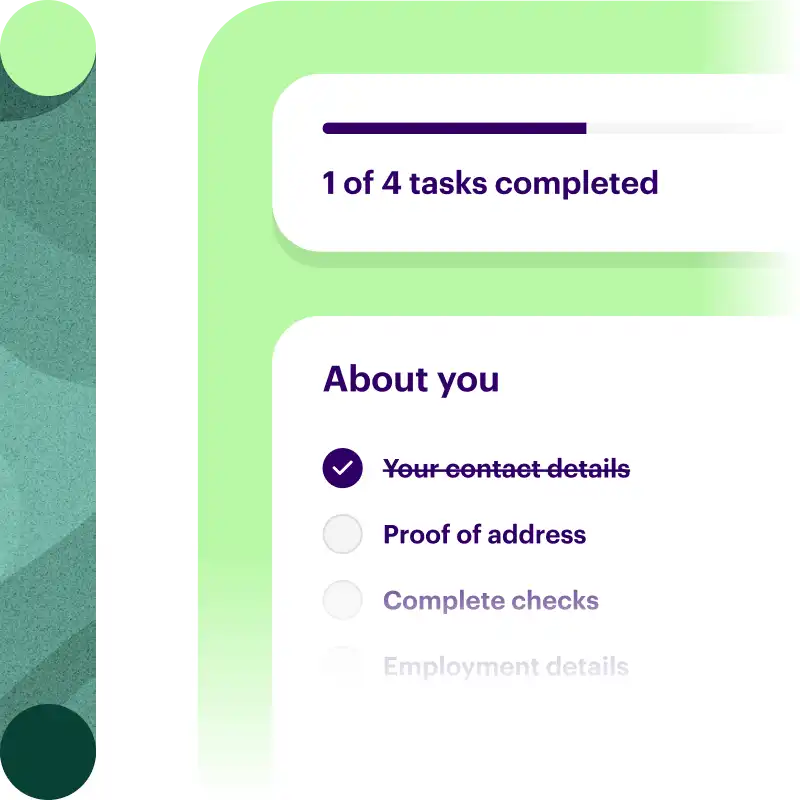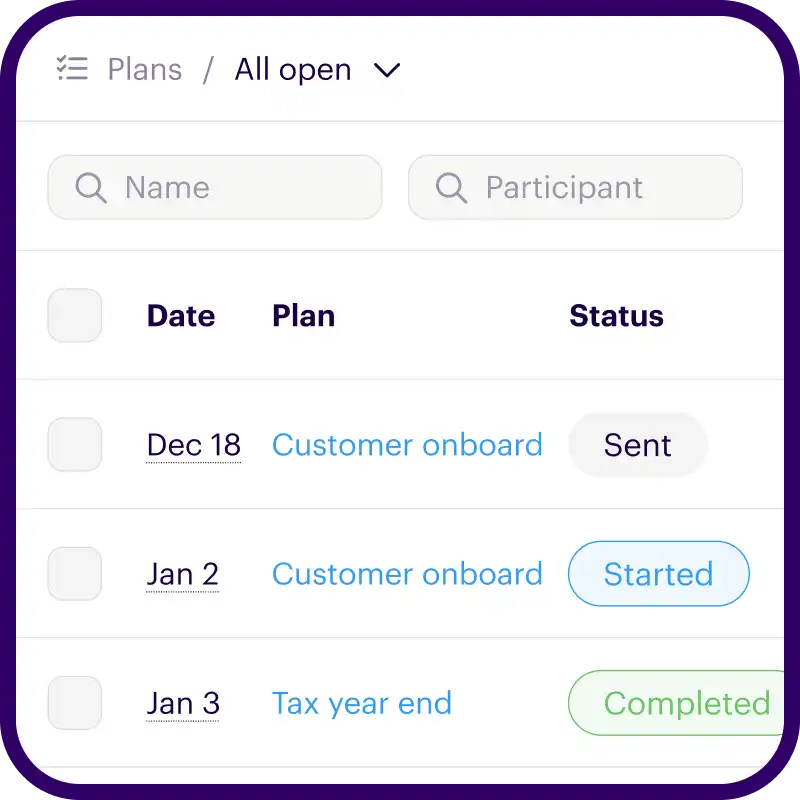

Onthen allows you to create onboarding 'plans' that you can send to customers, partners, prospects, or anyone else (we call them 'participants'). Each plan has a set of tasks that a participant needs to complete.
The Open URL task action guides the participant to open an external URL. This is useful for asking them to complete actions in others apps, or just asking them to read information accessible at a URL.
How it works
This task action is provided by Onthen and doesn't require any outside service. All you need to do is provide the URL that should be linked to the task.
When the participant begins the task, they'll see a button that they can click to open the URL. Only after they click the button can they return to the task and mark it as completed.
Popular use cases:
- Linking to user management pages in apps to ask the participant to give you access.
- Opening booking links for scheduling services other than those we support directly (Calendly and HubSpot Scheduler).
- Asking the participant to review information such as terms of use or disclaimers.
- Asking participants to review information in pretty much any other app.
- Many more use cases. If you can link to it, you can get it done with this task action.
Add the task action
In Onthen, open the template you want to add an open URL step into.
In the section you want to add the task, click Add task. Select Onthen / Open URL as the task type. Add a description, due date, etc. if you need. Click Add task to create the new task.
Tip: It's best to add a good description to this task type as otherwise the participant won't know what you expect them to do when they click the link!
When the task is saved, click on its name to configure it. You'll see a page like this:
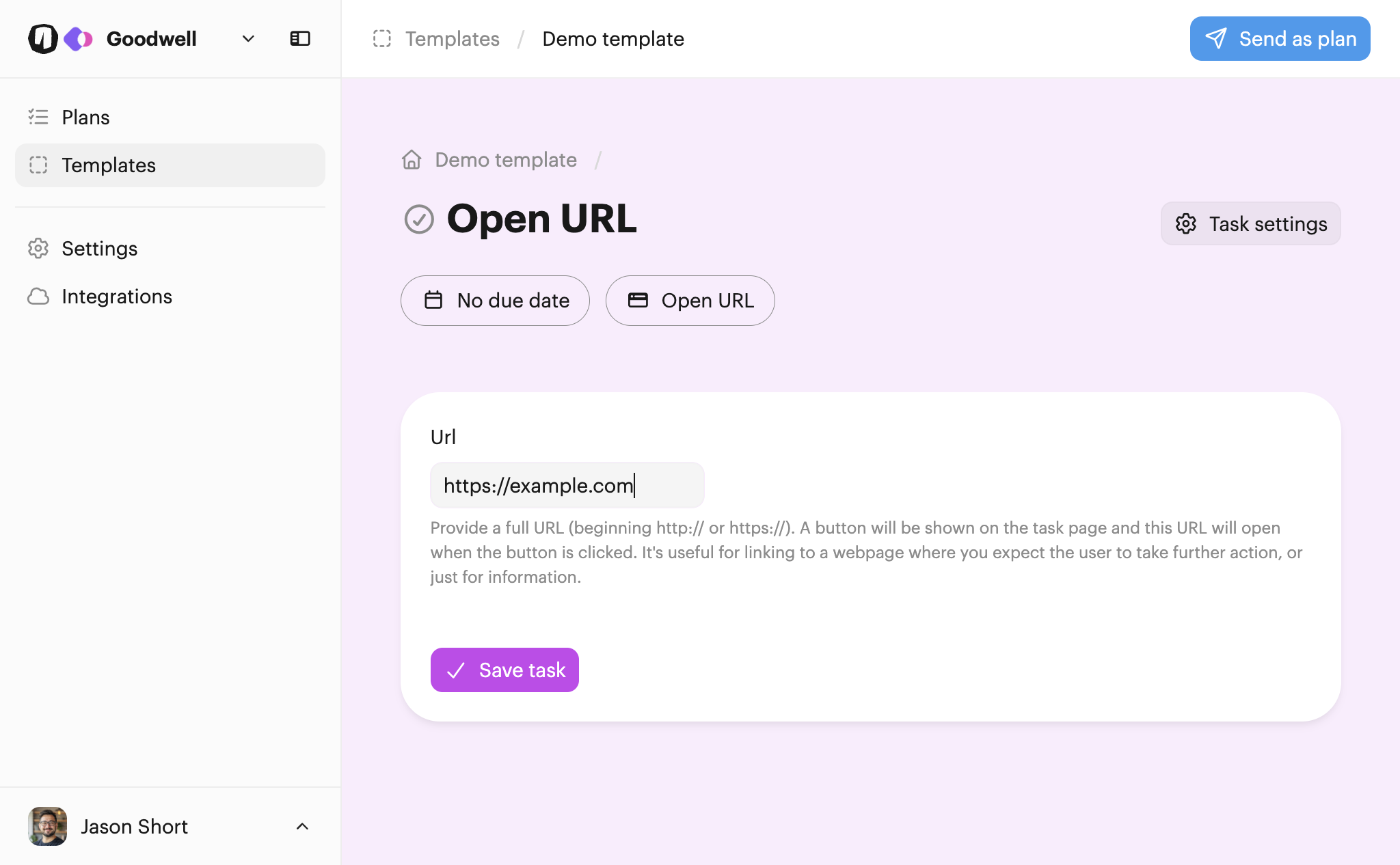
Just provide the URL you want to use and then click Save task when you're happy.
Using the task action
You can test the action by creating a new plan.
The quickest way to test this task action is to go to the list of plans after you've created the new plan, and click its name to open it as the user.
Once you're in the plan and click into the new task, you'll see the task page guiding you to open the link:
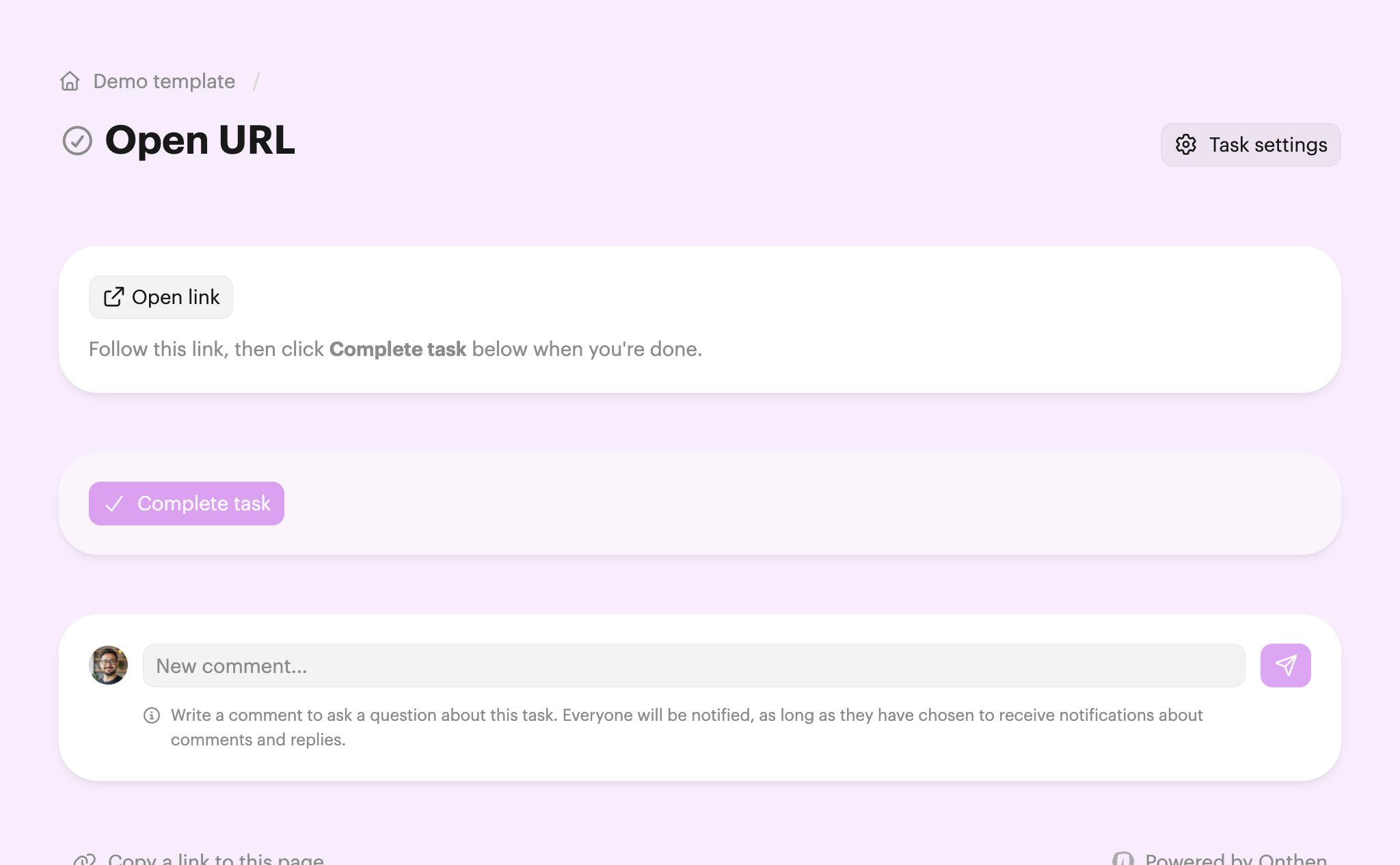
Once the link has been clicked, the Complete task button will be enabled and you will then be able to complete the task.
 Docusign / Sign template
 Calendly / Book meeting